<?xml version="1.0" encoding="utf-8"?><feed xmlns="http://www.w3.org/2005/Atom" ><generator uri="https://jekyllrb.com/" version="4.4.1">Jekyll</generator><link href="https://hadow.fr/feed.xml" rel="self" type="application/atom+xml" /><link href="https://hadow.fr/" rel="alternate" type="text/html" /><updated>2026-03-31T10:36:27+02:00</updated><id>https://hadow.fr/feed.xml</id><title type="html">hadow.fr</title><entry><title type="html">3d Printed And Handwired 60% Keyboard</title><link href="https://hadow.fr/blog/3d-printed-and-handwired-60-keyboard.html" rel="alternate" type="text/html" title="3d Printed And Handwired 60% Keyboard" /><published>2026-03-31T00:00:00+02:00</published><updated>2026-03-31T00:00:00+02:00</updated><id>https://hadow.fr/blog/3d-printed-and-handwired-60%25-keyboard</id><content type="html" xml:base="https://hadow.fr/blog/3d-printed-and-handwired-60-keyboard.html"><![CDATA[<p>I’ll describe in this short blog post how I 3d printed (not including the keycaps this time) a 60% keyboard (61 keys). Then hanwired it, and installed a firmware with ZMK on it. It is similar to the <a href="/blog/3d-printed-and-handwired-numpad.html">numpad</a>, just a bigger project. Read the numpad post first if you want more detailed instructions on how to handwire a keyboard.</p>

<h1 id="steps">steps</h1>

<h2 id="3d-printing-parts">3d printing parts</h2>

<p>Just like for the numpad I designed the parts with <a href="https://openscad.org/">openscad</a>, the parts and bash scripts are in the same repository <a href="https://git.hadow.fr/sam.hadow/keyboard_scad">here</a>.<br />
The script <code class="language-plaintext highlighter-rouge">keyboard60.sh</code> can be used to generate the stl files for the backplate and case. They’re both cut in half to make them fit on my 3d printer plate.<br />
If you want to 3d print the keycaps, there is a script too. But I personally used keycaps I already had on the side instead, mostly to see the letters better on the keycaps. The side engraving on my 3d printed keycaps is not that visible.<br />
I printed the parts with my bambulab P1S 3d printer, I used a 0.4mm nozzle and a 0.16mm layer height, white PETG filament as the material.<br />
I used T8000 glue to glue the parts.</p>

<p>The backplate looks like this before gluing the two halves:</p>

<p><img src="/assets/img/2026-03-31-3d-printed-and-handwired-60-keyboard/1.png" alt="Picture 1" /></p>

<p>With the switches mounted (I used MMD holy panda switches this time too):</p>

<p><img src="/assets/img/2026-03-31-3d-printed-and-handwired-60-keyboard/2.png" alt="Picture 2" /></p>

<h2 id="handwiring-the-keyboard">handwiring the keyboard</h2>

<p>Just like with the numpad we first need to bend the diodes so that it’s easier to solder them to the switches. I then soldered the rows with the legs of the diodes and cut the extra length after the anode.<br />
The keyboard is handwired columns to rows, so the diodes are soldered with the anodes soldered to the switches pins (the red part here). I used 1N4148 diodes as they’re very cheap.</p>

<p><img src="/assets/img/2026-03-31-3d-printed-and-handwired-60-keyboard/3.png" alt="Picture 3" /></p>

<p>And then after a few hours of soldering, and gluing the two haves together:<br />
(I also mounted the stabilizers, this time I used cheap plated mounted stabilizers.)</p>

<p><img src="/assets/img/2026-03-31-3d-printed-and-handwired-60-keyboard/4.png" alt="Picture 4" /></p>

<p><img src="/assets/img/2026-03-31-3d-printed-and-handwired-60-keyboard/5.png" alt="Picture 5" /></p>

<p>I used yellow and green wires alternating them between the columns to have an easier time soldering them to the microcontroller and writing the firmware after. I also used a pen to mark where to strip the wire to solder it to the pins. It was more convenient than just using my thumb to hold the wire where I have to strip it.</p>

<p>And this time too I used a Pro Micro NRF52840.</p>

<h2 id="flashing-the-firmware">flashing the firmware</h2>

<p>I used ZMK to flash the firmware, you can find the ZMK configuration in <a href="https://git.hadow.fr/sam.hadow/zmk-config">this repository</a> and <a href="https://github.com/Sam-Hadow/zmk-config">this one</a> for github action to automate the build process. This keyboard is named <code class="language-plaintext highlighter-rouge">keeb60_3d</code>. Like in the previous blog post, I recommand flashing the firmware before clipping the backplate in the case as you might have to reset the microcontroller to flash a fixed firmware.</p>

<h2 id="assembling-the-keyboard">assembling the keyboard</h2>

<p>I glued the two halves of the keyboard, taped the battery on the side of the case, soldered it to the microcontroller and the power switch of the keyboard.<br />
Like last time the switch is a 15mm round switch like <a href="https://aliexpress.com/item/1005009714438836.html">this</a> one. And the battery is a 3.7V LiPo battery with a 320mAh capacity (for the bluetooth).</p>

<p><img src="/assets/img/2026-03-31-3d-printed-and-handwired-60-keyboard/6.png" alt="Picture 6" /></p>

<p>I then glued the microcontroller in its holder, clipped in the backplate to the holder and mounted the keycaps.</p>

<h1 id="final-result">final result</h1>

<p>The keyboard:</p>

<p><img src="/assets/img/2026-03-31-3d-printed-and-handwired-60-keyboard/7.png" alt="Picture 7" /></p>

<p>The power switch and USB C port in the back:</p>

<p><img src="/assets/img/2026-03-31-3d-printed-and-handwired-60-keyboard/8.png" alt="Picture 8" /></p>]]></content><author><name>Sam Hadow</name></author><category term="3dprinting" /><category term="hardware" /><category term="soldering" /><summary type="html"><![CDATA[I’ll describe in this short blog post how I 3d printed (not including the keycaps this time) a 60% keyboard (61 keys). Then hanwired it, and installed a firmware with ZMK on it. It is similar to the numpad, just a bigger project. Read the numpad post first if you want more detailed instructions on how to handwire a keyboard.]]></summary></entry><entry><title type="html">3d Printed And Handwired Numpad</title><link href="https://hadow.fr/blog/3d-printed-and-handwired-numpad.html" rel="alternate" type="text/html" title="3d Printed And Handwired Numpad" /><published>2026-03-16T00:00:00+01:00</published><updated>2026-03-16T00:00:00+01:00</updated><id>https://hadow.fr/blog/3d-printed-and-handwired-numpad</id><content type="html" xml:base="https://hadow.fr/blog/3d-printed-and-handwired-numpad.html"><![CDATA[<p>In this blog post I’ll describe how I (mostly) 3d printed a numpad (21 keys keyboard), hanwired it, and installed a firmware with ZMK on it.</p>

<h1 id="steps">steps</h1>

<h2 id="3d-printing-parts">3d printing parts</h2>

<p>I designed the parts with <a href="https://openscad.org/">openscad</a>, the repository is available <a href="https://git.hadow.fr/sam.hadow/keyboard_scad">here</a>.<br />
I used the script <code class="language-plaintext highlighter-rouge">keycaps_numpad.sh</code> and the openscad script <code class="language-plaintext highlighter-rouge">xda_keycap.scad</code> to generate the stl files for the keycaps with an engraving on the side for each keycap. Then generated the stl files for the backplate and case with the files <code class="language-plaintext highlighter-rouge">backplate_numpad.scad</code> and <code class="language-plaintext highlighter-rouge">case_numpad.scad</code>.<br />
I then printed them with my bambulab P1S 3d printer, I used a 0.4mm nozzle and a 0.08mm layer height. I used white PETG filament to print all the parts. All the parts took about 12 hours to print.<br />
Here is the result for the 3d printed parts:</p>

<p><img src="/assets/img/2026-03-16-3d-printed-and-handwired-numpad/1.png" alt="Picture 1" /></p>

<p><img src="/assets/img/2026-03-16-3d-printed-and-handwired-numpad/2.png" alt="Picture 2" /></p>

<p>You’ll notice the backplate and the case changed between the two pictures. I changed the backplate design to be able to fit stabilizers instead of printing them myself. And for the case I changed the design to have stronger pillars and also enabled supports generation in the slicer.<br />
You’ll also notice the keycaps were printed with the side, and not the bottom, facing the plate. It takes longer to print but gives a smoother top with a XDA keycap profile. The engraving was printed facing away from the plate to make the seam between the front and top of the key smoother.</p>

<h2 id="mounting-the-switches-and-stabilizers-on-the-backplate">mounting the switches and stabilizers on the backplate</h2>

<p>I used MMD holy panda switches and cheap plate mounted stabilizers that I glued on the backplate. Just be careful not to glue the metal part to the stabilizer and pay attention to the orientation of the metal parts so that they don’t collide with the pillars in the case.</p>

<p><img src="/assets/img/2026-03-16-3d-printed-and-handwired-numpad/3.png" alt="Picture 3" /></p>

<p>You’ll notice some switches have 2 additional legs, they’re the same switches apart from this variation which doesn’t matter in this build. These two additional plastic legs are for PCB mount builds but are still adequate for plate mount builds. Just buy the cheapest version, or the one in stock with your supplier.</p>

<h2 id="handwiring-the-keyboard">handwiring the keyboard</h2>

<h3 id="bending-the-diodes">bending the diodes</h3>

<p>The diodes are just there to have the current flowing  in one direction (in my build from the columns to the rows) so you can use whichever diodes you have. I used 1N4148 diodes myself as they’re very cheap.<br />
We first need to bend the diode to have an easier time soldering them to the switches pins, I used the edge of my desk and then a small L shaped hex key to bend the diodes. For this build we need to prepare 21 diodes.<br />
Pay attention to the orientation of the diode, the anode (red part here) needs to be where the bend is while we keep the wire after the cathode (black part) straight</p>

<p><img src="/assets/img/2026-03-16-3d-printed-and-handwired-numpad/4.png" alt="Picture 4" /></p>

<p><img src="/assets/img/2026-03-16-3d-printed-and-handwired-numpad/5.png" alt="Picture 5" /></p>

<p><img src="/assets/img/2026-03-16-3d-printed-and-handwired-numpad/6.png" alt="Picture 6" /></p>

<h3 id="soldering-the-diodes">soldering the diodes</h3>

<p>We then need to solder the diodes to one pin for each switch, you can pick the “top” or “bottom” pin, it doesn’t matter as long as you’re consistent with your rows and columns wiring later. You can stay consistent and always pick the same pin to have an easier time wiring the rows and columns but electrically it doesn’t matter. After soldering the diodes you can cut the extra wire after the anode.</p>

<p><img src="/assets/img/2026-03-16-3d-printed-and-handwired-numpad/7.png" alt="Picture 7" /></p>

<h3 id="wiring-the-rows">wiring the rows</h3>

<p>I used the extra wire after the cathode on the diodes to wire the rows like this:</p>

<p><img src="/assets/img/2026-03-16-3d-printed-and-handwired-numpad/8.png" alt="Picture 8" /></p>

<p><img src="/assets/img/2026-03-16-3d-printed-and-handwired-numpad/9.png" alt="Picture 9" /></p>

<h3 id="wiring-the-columns-and-the-microcontroller">wiring the columns and the microcontroller</h3>

<p>After wiring the rows, wire the columns using the other pin on each switch. And then wire each row and column to a pin on your microcontroller. I used a pro micro nRF52840 as it support bluetooth, is supported by ZMK, and is pretty cheap. I also wired a 3.7V LiPo battery with a 320mAh capacity to the controller to be able to use the keyboard wirelessly. The capacity doesn’t matter much, above 300mAh is good to have a long lasting battery. At least if you don’t plan to use RGB leds.<br />
Also note to which pin you wire each row and column to adapt the ZMK layout later.</p>

<p><img src="/assets/img/2026-03-16-3d-printed-and-handwired-numpad/10.png" alt="Picture 10" /></p>

<p><img src="/assets/img/2026-03-16-3d-printed-and-handwired-numpad/11.png" alt="Picture 11" /></p>

<h2 id="flashing-the-firmware">flashing the firmware</h2>

<p>I recommend flashing the firmware before clipping the plate in the case so that you can easily access to reset pin to reset your microcontroller if you mess up the firmware and proceed with trial and error with ZMK.<br />
I have <a href="https://git.hadow.fr/sam.hadow/zmk-config">this repository</a> and <a href="https://github.com/Sam-Hadow/zmk-config">this one</a> on github as the build process is simplified with github action. The config for this keyboard is in <code class="language-plaintext highlighter-rouge">zmk-config/boards/shield/numpad3d</code>, in there you need to define the layout in <code class="language-plaintext highlighter-rouge">numpad3d.keymap</code> and the GPIO mapping for each row and column in <code class="language-plaintext highlighter-rouge">numpad3d.overlay</code>. You can also enable the bluetooth and tweak some features in <code class="language-plaintext highlighter-rouge">numpad3d.conf</code>. You then need to specify the keyboard to build and which microcontroller is used in <code class="language-plaintext highlighter-rouge">zmk-config/build.yaml</code>.<br />
To flash the firmware you plug in the microcontroller and copy the firmware to the detected disk device, the microcontroller will then automatically reset itself.</p>

<h2 id="assembling-the-keyboard">assembling the keyboard</h2>

<p>You can then assemble the keyboard. I used electrical tape to keep the microcontroller and the battery in place in the case. After that I clipped in the plate in the case and added the keycaps on the switches. Here is the final result:</p>

<p><img src="/assets/img/2026-03-16-3d-printed-and-handwired-numpad/12.png" alt="Picture 12" /></p>

<p><img src="/assets/img/2026-03-16-3d-printed-and-handwired-numpad/13.png" alt="Picture 13" /></p>

<p><img src="/assets/img/2026-03-16-3d-printed-and-handwired-numpad/14.png" alt="Picture 14" /></p>

<h1 id="possible-improvements">possible improvements</h1>

<p>Overall 3d printing and handwiring this keyboard was a fun project but, as always, there are possible improvements, I’ll list them here in no particular order.</p>

<ul>
  <li>Adapting the github action automation to gitea action.</li>
  <li>Designing a screw in cover to hold the microcontroller and battery in place instead of using electrical tape.</li>
  <li>Multi filament printing and having a text in a different color instead of an engraving for the keycaps, though I don’t own an AMS yet. Currently the keycaps look okay during the day, but it’s harder to see the engraving in low light conditions.</li>
  <li><del>Adding a switch on one of the battery wire to be able to turn off the keyboard. Currently it’s constantly on.</del></li>
</ul>

<h1 id="update-24032026">Update 24/03/2026</h1>

<p>I modified the case a little and added a switch for the battery to turn off the keyboard. The switch I used is a 15mm round switch like <a href="https://aliexpress.com/item/1005009714438836.html">this</a> one (sanitized and non affiliated link).</p>

<p><img src="/assets/img/2026-03-16-3d-printed-and-handwired-numpad/15.png" alt="Picture 15" /></p>]]></content><author><name>Sam Hadow</name></author><category term="3dprinting" /><category term="hardware" /><category term="soldering" /><summary type="html"><![CDATA[In this blog post I’ll describe how I (mostly) 3d printed a numpad (21 keys keyboard), hanwired it, and installed a firmware with ZMK on it.]]></summary></entry><entry><title type="html">Archlinux Waydroid Installation Guide</title><link href="https://hadow.fr/blog/archlinux-waydroid-installation-guide.html" rel="alternate" type="text/html" title="Archlinux Waydroid Installation Guide" /><published>2026-02-15T00:00:00+01:00</published><updated>2026-02-15T00:00:00+01:00</updated><id>https://hadow.fr/blog/archlinux-waydroid-installation-guide</id><content type="html" xml:base="https://hadow.fr/blog/archlinux-waydroid-installation-guide.html"><![CDATA[<p>This blog post is a short guide to run and use <a href="https://github.com/waydroid/waydroid">waydroid</a> on archlinux.</p>

<h1 id="what-is-waydroid">What is waydroid?</h1>

<p>Waydroid is a container-based approach to boot a ful android system on a regular linux system with an x86 or ARM CPU, and so has less overhead than an android x86 virtual machine to run android apps on a linux system. Waydroid only works in a wayland session but it’s still possible to use a nested session if you use X11, which will be covered in this guide.</p>

<h1 id="installation-guide">Installation guide</h1>

<h2 id="requirements">Requirements</h2>

<p>A kernel which comes with the <code class="language-plaintext highlighter-rouge">rust_binder</code> module is necessary to run waydroid, <code class="language-plaintext highlighter-rouge">linux-zen</code> kernel includes this module.</p>

<h3 id="other-kernels">Other kernels</h3>

<p>If you’re using another kernel you can add it via DKMS (note that you can use another <a href="https://wiki.archlinux.org/title/AUR_helpers">aur helper</a> than yay).</p>

<div class="language-bash highlighter-rouge"><div class="highlight"><pre class="highlight"><code>yay <span class="nt">-S</span> binder_linux-dkms
</code></pre></div></div>

<p>Then you can manually load it:</p>

<div class="language-bash highlighter-rouge"><div class="highlight"><pre class="highlight"><code><span class="nb">sudo </span>modprobe binder-linux <span class="nv">devices</span><span class="o">=</span>binder,hwbinder,vndbinder
</code></pre></div></div>

<p>Or load it automatically at boot:</p>

<div class="language-bash highlighter-rouge"><div class="highlight"><pre class="highlight"><code><span class="nb">echo</span> <span class="s2">"binder_linux"</span> <span class="o">&gt;</span> /etc/modules-load.d/binder_linux.conf
<span class="nb">echo</span> <span class="s2">"options binder_linux devices=binder,hwbinder,vndbinder"</span> <span class="o">&gt;</span> /etc/modprobe.d/binder_linux.conf
</code></pre></div></div>

<h2 id="installing-necessary-packages">Installing necessary packages:</h2>

<div class="language-bash highlighter-rouge"><div class="highlight"><pre class="highlight"><code><span class="nb">sudo </span>pacman <span class="nt">-S</span> waydroid
</code></pre></div></div>

<h3 id="on-x11">[On X11]</h3>

<p>If using X11, you’ll need to run a nested wayland session, a simple solution is using cage. You could also use weston.</p>

<div class="language-bash highlighter-rouge"><div class="highlight"><pre class="highlight"><code><span class="nb">sudo </span>pacman <span class="nt">-S</span> cage
</code></pre></div></div>

<h2 id="initializing-waydroid">Initializing waydroid:</h2>

<div class="language-bash highlighter-rouge"><div class="highlight"><pre class="highlight"><code><span class="nb">sudo </span>waydroid init
</code></pre></div></div>

<p>Or with google apps support:</p>

<div class="language-bash highlighter-rouge"><div class="highlight"><pre class="highlight"><code><span class="nb">sudo </span>waydroid init <span class="nt">-s</span> GAPPS
</code></pre></div></div>

<h2 id="running-waydroid">Running waydroid</h2>

<p>This command will automatically start the waydroid container and a session before showing the UI.</p>

<div class="language-bash highlighter-rouge"><div class="highlight"><pre class="highlight"><code>waydroid show-full-ui
</code></pre></div></div>

<p>Otherwise if you want a CLI, you have to start the container and then a session:</p>

<div class="language-bash highlighter-rouge"><div class="highlight"><pre class="highlight"><code><span class="nb">sudo </span>systemctl start waydroid-container.service
waydroid session start
</code></pre></div></div>

<h4 id="useful-commands">Useful commands</h4>

<table>
  <thead>
    <tr>
      <th style="text-align: left">Command</th>
      <th style="text-align: left">Purpose</th>
    </tr>
  </thead>
  <tbody>
    <tr>
      <td style="text-align: left"><code class="language-plaintext highlighter-rouge">waydroid session start</code></td>
      <td style="text-align: left">Starting a session</td>
    </tr>
    <tr>
      <td style="text-align: left"><code class="language-plaintext highlighter-rouge">waydroid session stop</code></td>
      <td style="text-align: left">Stopping a session</td>
    </tr>
    <tr>
      <td style="text-align: left"><code class="language-plaintext highlighter-rouge">waydroid status</code></td>
      <td style="text-align: left">Checking Waydroid status</td>
    </tr>
    <tr>
      <td style="text-align: left"><code class="language-plaintext highlighter-rouge">sudo waydroid upgrade</code></td>
      <td style="text-align: left">Upgrading the LineageOS image</td>
    </tr>
    <tr>
      <td style="text-align: left"><code class="language-plaintext highlighter-rouge">waydroid app list</code></td>
      <td style="text-align: left">Get the list of installed apps</td>
    </tr>
    <tr>
      <td style="text-align: left"><code class="language-plaintext highlighter-rouge">waydroid app install $path_to_apk</code></td>
      <td style="text-align: left">Install an APK</td>
    </tr>
    <tr>
      <td style="text-align: left"><code class="language-plaintext highlighter-rouge">waydroid show-full-ui</code></td>
      <td style="text-align: left">Launch the GUI</td>
    </tr>
    <tr>
      <td style="text-align: left"><code class="language-plaintext highlighter-rouge">waydroid app launch $package_name</code></td>
      <td style="text-align: left">Launch an app</td>
    </tr>
    <tr>
      <td style="text-align: left"><code class="language-plaintext highlighter-rouge">sudo waydroid shell</code></td>
      <td style="text-align: left">Launch a shell</td>
    </tr>
    <tr>
      <td style="text-align: left"><code class="language-plaintext highlighter-rouge">waydroid --help</code></td>
      <td style="text-align: left">Display the help message</td>
    </tr>
    <tr>
      <td style="text-align: left"> </td>
      <td style="text-align: left"> </td>
    </tr>
  </tbody>
</table>

<h3 id="on-x11-1">[On X11]</h3>

<p>On X11 waydroid container can be started but then all waydroid commands need to be run inside a nested wayland session.<br />
If you just need waydroid UI the simplest is with cage:</p>

<div class="language-bash highlighter-rouge"><div class="highlight"><pre class="highlight"><code>cage <span class="nt">--</span> waydroid show-full-ui
</code></pre></div></div>

<p>If you need the command line then you need to have a console running inside a wayland session. For example with Konsole:</p>

<div class="language-bash highlighter-rouge"><div class="highlight"><pre class="highlight"><code>cage <span class="nt">--</span> konsole
</code></pre></div></div>

<p>You can then type the commands the same as described above.</p>

<h2 id="firewall-rules-and-packet-forwarding">Firewall rules and packet forwarding</h2>

<p>You need some additional rules in your firewall if you want the network to work inside waydroid. For example with nftables you need these additional rules in your tables:</p>

<div class="language-plaintext highlighter-rouge"><div class="highlight"><pre class="highlight"><code>table inet filter {
        chain input {
                # -------------------------------- waydroid
                iifname "waydroid0" accept comment "Allow incoming network traffic from WayDroid"

        }

        chain forward {
                # -------------------------------- waydroid
                iifname "waydroid0" accept comment "Allow incomming network traffic from WayDroid"
                oifname "waydroid0" accept comment "Allow outgoing network traffic from WayDroid"
        }
        chain output {
        }
}

</code></pre></div></div>

<p>You also need to enable packet forwarding. To check if it’s already enabled:</p>

<div class="language-bash highlighter-rouge"><div class="highlight"><pre class="highlight"><code>sysctl net.ipv4.ip_forward
sysctl net.ipv6.conf.all.forwarding
</code></pre></div></div>

<p>If it’s not enabled you can permanently enable it in the file <code class="language-plaintext highlighter-rouge">/etc/sysctl.conf</code> by uncommenting the lines <code class="language-plaintext highlighter-rouge">net.ipv4.ip_forward=1</code> for IPv4 and <code class="language-plaintext highlighter-rouge">net.ipv6.conf.all.forwarding=1</code> for IPv6. Please note that in most cases you can for now just enable the IPv4 packet forwarding and ignore the IPv6 one.<br />
And to reload the configuration:</p>

<div class="language-bash highlighter-rouge"><div class="highlight"><pre class="highlight"><code><span class="nb">sudo </span>sysctl <span class="nt">-p</span> /etc/sysctl.conf
</code></pre></div></div>

<h2 id="additional-notes">Additional notes</h2>

<h4 id="1-clipboard-sharing">1) clipboard sharing</h4>

<p>If you want to share the clipboard between a wayland session and waydroid UI you need to install the packages <code class="language-plaintext highlighter-rouge">python-pyclip</code> and <code class="language-plaintext highlighter-rouge">wl-clipboard</code>.<br />
It however won’t work with X11 and nested wayland sessions.</p>

<h4 id="2-app-stores">2) app stores</h4>

<p>You might want to install <a href="https://gitlab.com/AuroraOSS/AuroraStore">aurora store</a>, an open source google play store client not requiring a google account. And an F-Droid client like <a href="https://f-droid.org/en/packages/com.looker.droidify/">droidify</a>.</p>

<h4 id="3-gpu">3) GPU</h4>

<p>If you have an Intel or AMD GPU it should work out of the box. But if you have a NVIDIA GPU you’ll need to enable software rendering. For that in <code class="language-plaintext highlighter-rouge">/var/lib/waydroid/waydroid.cfg</code> add the following:</p>

<div class="language-plaintext highlighter-rouge"><div class="highlight"><pre class="highlight"><code>[properties]
ro.hardware.gralloc=default
ro.hardware.egl=swiftshader
</code></pre></div></div>

<p>and then run:</p>

<div class="language-bash highlighter-rouge"><div class="highlight"><pre class="highlight"><code><span class="nb">sudo </span>waydroid upgrade <span class="nt">--offline</span>
<span class="nb">sudo </span>systemctl restart waydroid-container.service
</code></pre></div></div>

<h4 id="4-running-arm-apps">4) Running ARM apps</h4>

<p>ARM apps won’t work at first if you have a x86 CPU, it’ll say the app is incompatible for your device when trying to install it. To use arm apps you need to install a translation layer. It’s recommanded to use <code class="language-plaintext highlighter-rouge">libndk</code> on AMD CPUs and <code class="language-plaintext highlighter-rouge">libhoudini</code> on Intel CPUs. To do that:</p>

<div class="language-bash highlighter-rouge"><div class="highlight"><pre class="highlight"><code>yay <span class="nt">-S</span> waydroid-script-git

<span class="nb">sudo </span>waydroid-extras <span class="nb">install </span>libndk 
<span class="c"># or</span>
<span class="nb">sudo </span>waydroid-extras <span class="nb">install </span>libhoudini 

<span class="nb">sudo </span>systemctl restart waydroid-container.service
</code></pre></div></div>

<p>And if you’re interested in learning more about Intel houdini you can have a look at <a href="https://media.defcon.org/DEF%20CON%2029/DEF%20CON%2029%20presentations/Brian%20Hong%20-%20Sleight%20of%20ARM%20-%20%20Demystifying%20Intel%20Houdini.pdf">this presentation</a>, and in <a href="https://www.youtube.com/watch?v=kdd8dSifxvU">video</a></p>

<h4 id="5-disabling-on-screen-keyboard">5) Disabling on screen keyboard</h4>

<p>By default waydroid shows AOSP on screen keyboard, which is useless on a computer with a keyboard already, to disable it the setting is in <code class="language-plaintext highlighter-rouge">Settings &gt; System &gt; Languages &amp; input &gt; Physical keyboard &gt; Use on-screen keyboard</code></p>

<h4 id="6-selinux">6) SELinux</h4>

<p>This module is necessary for waydroid to work:</p>

<div class="language-plaintext highlighter-rouge"><div class="highlight"><pre class="highlight"><code>module local-waydroid-nft 1.0;

require {
        type virtd_t;
        type iptables_t;
        class process { noatsecure rlimitinh siginh };
}

#============= virtd_t ==============
allow virtd_t iptables_t:process { noatsecure rlimitinh siginh };
</code></pre></div></div>

<p>You can compile it and load it with these commands (with the content above in a file <code class="language-plaintext highlighter-rouge">local-waydroid-nft.te</code>):</p>

<div class="language-bash highlighter-rouge"><div class="highlight"><pre class="highlight"><code>checkmodule <span class="nt">-m</span> <span class="nt">-o</span> local-waydroid-nft.mod local-waydroid-nft.te
semodule_package <span class="nt">-o</span> local-waydroid-nft.pp <span class="nt">-m</span> local-waydroid-nft.mod
semodule <span class="nt">-i</span> local-waydroid-nft.pp
</code></pre></div></div>

<p>And this script makes starting waydroid more convenient:</p>

<div class="language-bash highlighter-rouge"><div class="highlight"><pre class="highlight"><code><span class="c">#!/bin/bash</span>
<span class="nb">sudo</span> /usr/lib/waydroid/data/scripts/waydroid-net.sh start
cage <span class="nt">--</span> waydroid show-full-ui
</code></pre></div></div>

<h4 id="7-additional-troubleshooting">7) Additional troubleshooting</h4>

<p>Finally you might want to check the <a href="https://wiki.archlinux.org/title/Waydroid">archwiki</a> directly if having issues with waydroid.<br />
And although it’s quite old and contains some unecessary steps now, you can check <a href="https://forum.garudalinux.org/t/ultimate-guide-to-install-waydroid-in-any-arch-based-distro-especially-garuda/15902">this guide</a> too.</p>]]></content><author><name>Sam Hadow</name></author><category term="archlinux" /><category term="sysadmin" /><summary type="html"><![CDATA[This blog post is a short guide to run and use waydroid on archlinux.]]></summary></entry><entry><title type="html">Build Metasploitable 3 From Source With Qemu Kvm</title><link href="https://hadow.fr/blog/build-metasploitable-3-from-source-with-qemu-kvm.html" rel="alternate" type="text/html" title="Build Metasploitable 3 From Source With Qemu Kvm" /><published>2026-02-06T00:00:00+01:00</published><updated>2026-02-06T00:00:00+01:00</updated><id>https://hadow.fr/blog/build-metasploitable-3-from-source-with-qemu-kvm</id><content type="html" xml:base="https://hadow.fr/blog/build-metasploitable-3-from-source-with-qemu-kvm.html"><![CDATA[<p>This blog post is a short guide to build from source a metasploitable3 disk image for qemu kvm (qcow2 format), and then how to use the built image.</p>

<h2 id="pre-requisite-packer-and-its-plugins">Pre-requisite: packer and its plugins</h2>

<p>On archlinux:</p>

<div class="language-bash highlighter-rouge"><div class="highlight"><pre class="highlight"><code><span class="nb">sudo </span>pacman <span class="nt">-S</span> packer
</code></pre></div></div>

<p>then independently of your distribution:</p>

<div class="language-bash highlighter-rouge"><div class="highlight"><pre class="highlight"><code>packer plugins <span class="nb">install </span>github.com/hashicorp/qemu
packer plugins <span class="nb">install </span>github.com/hashicorp/chef
</code></pre></div></div>

<h2 id="steps">Steps:</h2>

<h3 id="1-clone-metasploitable3-repository">1) Clone metasploitable3 repository</h3>

<div class="language-bash highlighter-rouge"><div class="highlight"><pre class="highlight"><code>git clone https://github.com/rapid7/metasploitable3.git
<span class="nb">cd </span>metasploitable3
</code></pre></div></div>

<h3 id="2-disable-vagrant-post-processor">2) Disable Vagrant post-processor</h3>

<p>The default template packages the build in a .box Vagrant file which is unnecessary. Backup the template and then edit it.</p>

<div class="language-bash highlighter-rouge"><div class="highlight"><pre class="highlight"><code><span class="nb">cp </span>packer/templates/ubuntu_1404.json packer/templates/ubuntu_1404.json.bak
</code></pre></div></div>

<p>In <code class="language-plaintext highlighter-rouge">packer/templates/ubuntu_1404.json</code> remove the entire <code class="language-plaintext highlighter-rouge">post-processors</code> block.<br />
You can check if the JSON file is valid with this command:</p>

<div class="language-bash highlighter-rouge"><div class="highlight"><pre class="highlight"><code>python3 <span class="nt">-m</span> json.tool packer/templates/ubuntu_1404.json <span class="o">&gt;</span>/dev/null <span class="o">&amp;&amp;</span> <span class="nb">echo</span> <span class="s2">"OK"</span>
</code></pre></div></div>

<p>If it doesn’t print <code class="language-plaintext highlighter-rouge">OK</code> the JSON is not valid</p>

<h3 id="3-docker-fix">3) Docker fix</h3>

<p>Modern docker is broken with metasploitable3.<br />
Backup the original file:</p>

<div class="language-bash highlighter-rouge"><div class="highlight"><pre class="highlight"><code><span class="nb">cp </span>chef/cookbooks/metasploitable/recipes/flags.rb chef/cookbooks/metasploitable/recipes/flags.rb.bak
</code></pre></div></div>

<p>Then remove the docker part from it:</p>

<div class="language-bash highlighter-rouge"><div class="highlight"><pre class="highlight"><code><span class="nb">sed</span> <span class="nt">-e</span> <span class="s2">"/^# 7 of Diamonds</span><span class="nv">$/</span><span class="s2">,/^end</span><span class="nv">$/</span><span class="s2">d"</span> <span class="se">\</span>
    <span class="nt">-e</span> <span class="s2">"/^include_recipe 'metasploitable::docker'/d"</span> <span class="se">\</span>
    <span class="nt">-e</span> <span class="s2">"/^directory '</span><span class="se">\/</span><span class="s2">opt</span><span class="se">\/</span><span class="s2">docker' do/,/^end</span><span class="nv">$/</span><span class="s2">d"</span> <span class="se">\</span>
    <span class="nt">-e</span> <span class="s2">"/^cookbook_file '</span><span class="se">\/</span><span class="s2">opt</span><span class="se">\/</span><span class="s2">docker</span><span class="se">\/</span><span class="s2">Dockerfile' do/,/^end</span><span class="nv">$/</span><span class="s2">d"</span> <span class="se">\</span>
    <span class="nt">-e</span> <span class="s2">"/^cookbook_file '</span><span class="se">\/</span><span class="s2">opt</span><span class="se">\/</span><span class="s2">docker</span><span class="se">\/</span><span class="s2">7_of_diamonds.zip' do/,/^end</span><span class="nv">$/</span><span class="s2">d"</span> <span class="se">\</span>
    <span class="nt">-e</span> <span class="s2">"/^docker_image '7_of_diamonds' do/,/^end</span><span class="nv">$/</span><span class="s2">d"</span> <span class="se">\</span>
    <span class="nt">-e</span> <span class="s2">"/^docker_container '7_of_diamonds' do/,/^end</span><span class="nv">$/</span><span class="s2">d"</span> <span class="se">\</span>
    <span class="nt">-e</span> <span class="s2">"/^file '</span><span class="se">\/</span><span class="s2">opt</span><span class="se">\/</span><span class="s2">docker</span><span class="se">\/</span><span class="s2">7_of_diamonds.zip' do/,/^end</span><span class="nv">$/</span><span class="s2">d"</span> <span class="se">\</span>
    chef/cookbooks/metasploitable/recipes/flags.rb <span class="o">&gt;</span> /tmp/flags.rb.<span class="nv">$$</span> <span class="o">&amp;&amp;</span> <span class="nb">mv</span> /tmp/flags.rb.<span class="nv">$$</span> chef/cookbooks/metasploitable/recipes/flags.rb
</code></pre></div></div>

<h3 id="4-build-the-image">4) Build the image</h3>

<div class="language-bash highlighter-rouge"><div class="highlight"><pre class="highlight"><code>packer build <span class="nt">-only</span><span class="o">=</span>qemu packer/templates/ubuntu_1404.json
</code></pre></div></div>

<p>It will open a GUI and start the installation, in the console you should see the installation process. It will connect to the virtual machine in SSH to install the vulnerable services.</p>

<h3 id="5-using-the-built-image">5) Using the built image</h3>

<p>You’ll find the built image in qcow2 format in <code class="language-plaintext highlighter-rouge">output-qemu/</code>, for example mine is <code class="language-plaintext highlighter-rouge">output-qemu/metasploitable3-ub1404</code>.<br />
You can then import it in virt-manager.<br />
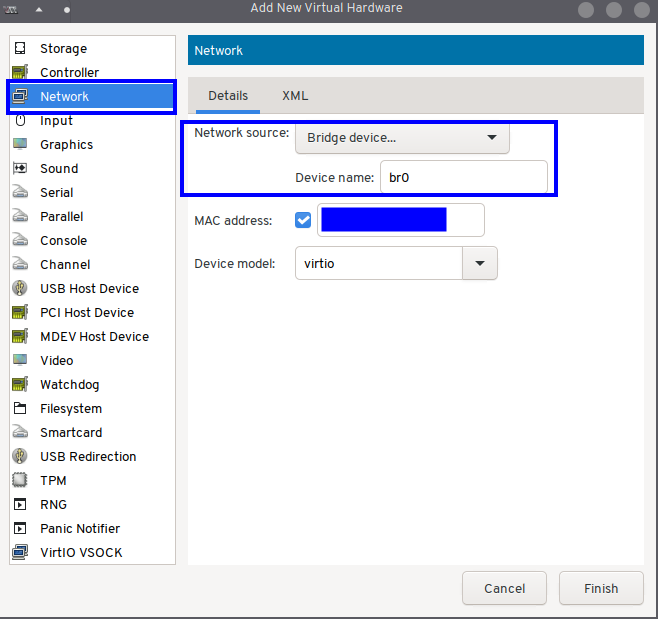
Please note that the disk device bus type should be SATA, not VirtIO or the boot will fail as the initramfs inside the image does not have VirtIO drivers. Similarly the virtual network device model should be e1000e and not virtio. The default user and password will be <code class="language-plaintext highlighter-rouge">vagrant</code>.<br />
Please also note that you should never connect this virtual machine to the internet as it’s intentionally made to have all sort of vulnerabilities. As such you should create an isolated network in virt-manager and connect it to this network only.<br />
You can then study the vulnerabilities from an another virtual machine like a Kali linux or from your host using metasploit or other similar tools.</p>]]></content><author><name>Sam Hadow</name></author><category term="sysadmin" /><category term="virtualization" /><category term="cybersecurity" /><summary type="html"><![CDATA[This blog post is a short guide to build from source a metasploitable3 disk image for qemu kvm (qcow2 format), and then how to use the built image.]]></summary></entry><entry><title type="html">Archlinux Uefi Lvm On Luks With Selinux Installation Guide</title><link href="https://hadow.fr/blog/archlinux-uefi-lvm-on-luks-with-selinux-installation-guide.html" rel="alternate" type="text/html" title="Archlinux Uefi Lvm On Luks With Selinux Installation Guide" /><published>2026-01-25T00:00:00+01:00</published><updated>2026-01-25T00:00:00+01:00</updated><id>https://hadow.fr/blog/archlinux-uefi-lvm-on-luks-with-selinux-installation-guide</id><content type="html" xml:base="https://hadow.fr/blog/archlinux-uefi-lvm-on-luks-with-selinux-installation-guide.html"><![CDATA[<p>This post is a guide to install archlinux in UEFI with full disk encryption (LVM on LUKS), SELinux enabled and optionally secure boot.<br />
<strong>Warning:</strong> apparmor is much easier to use on archlinux, SELinux on archlinux <strong>will</strong> require you to write some policies manually. Fedora is a better solution if you want SELinux working out of the box and don’t want to fight SELinux writing policies. This guide is mostly for advanced users.</p>

<h2 id="preparing-installation-media">preparing installation media</h2>

<p>Follow the initial steps from archlinux <a href="https://wiki.archlinux.org/title/Installation_guide">wiki</a> to prepare your installation media, the most convenient solution is to copy the ISO to a <a href="https://www.ventoy.net/en/index.html">ventoy</a> USB key.<br />
Then boot your archlinux ISO and first check you have internet access on your computer:</p>

<div class="language-bash highlighter-rouge"><div class="highlight"><pre class="highlight"><code>ping archlinux.org
</code></pre></div></div>

<p>If using WiFi, you’ll need to use <a href="https://wiki.archlinux.org/title/Iwd#iwctl">iwctl</a></p>

<h1 id="installation-steps">installation steps</h1>

<h2 id="1-setting-up-lvm-and-preparing-volumes">1) setting up LVM and preparing volumes</h2>

<h3 id="11-loading-the-required-kernel-modules">1.1) loading the required kernel modules</h3>

<div class="language-bash highlighter-rouge"><div class="highlight"><pre class="highlight"><code>modprobe efivarfs
modprobe dm-crypt 
modprobe dm-mod 
</code></pre></div></div>

<h3 id="12-partition-table">1.2) partition table</h3>

<p>Find the disk you want to use to install your system with <code class="language-plaintext highlighter-rouge">lsblk</code>. For me it’s <code class="language-plaintext highlighter-rouge">vda</code> as I’m using a virtual machine to write this guide.<br />
<strong>important:</strong> Select a GPT parition table type and not MBR.<br />
Create a partition table with <code class="language-plaintext highlighter-rouge">cfdisk /dev/vda</code> (or your prefered tool) and create 2 partitions:</p>
<ul>
  <li><code class="language-plaintext highlighter-rouge">/dev/vda1</code> as ef EFI (FAT-12/16/32) type, a size of 512MB is fine</li>
  <li><code class="language-plaintext highlighter-rouge">/dev/vda2</code> as 83 Linux filesystem type for the rest of the disk</li>
</ul>

<p>Write the partition table to the disk.</p>

<h3 id="13-setting-up-the-encrypted-volume">1.3) setting up the encrypted volume</h3>

<p>Create the encrypted volume, it will ask you for a confirmation and let you choose a passphrase. (Note that PBKDF2 key derivation algorithm is weaker than Argon2 but is required when using the default grub bootloader, the installation using systemd-boot will not be covered in this guide.)</p>

<div class="language-bash highlighter-rouge"><div class="highlight"><pre class="highlight"><code>cryptsetup luksFormat <span class="nt">--type</span> luks2 <span class="nt">--pbkdf</span> pbkdf2 /dev/vda2
</code></pre></div></div>

<p>Then open it with the passphrase chosen.</p>

<div class="language-bash highlighter-rouge"><div class="highlight"><pre class="highlight"><code>cryptsetup luksOpen /dev/vda2 luks
</code></pre></div></div>

<h3 id="14-setting-up-lvm">1.4) setting up LVM</h3>

<p>We will create 3 volumes, one for the SWAP, one for the ROOT filesystem and one for the HOME filesystem. Adapt the sizes to what is appropriate for you, in my case I’m using a virtual machine with a 25GB disk so I won’t create a huge root volume.</p>

<div class="language-bash highlighter-rouge"><div class="highlight"><pre class="highlight"><code>pvcreate /dev/mapper/luks
vgcreate system /dev/mapper/luks
lvcreate <span class="nt">-L</span> 1G <span class="nt">-n</span> swap system
lvcreate <span class="nt">-L</span> 10G <span class="nt">-n</span> root system
lvcreate <span class="nt">-l</span> 100%FREE <span class="nt">-n</span> home system
</code></pre></div></div>

<h3 id="15-formating-and-mounting-the-volumes">1.5) formating and mounting the volumes</h3>

<p>I’ll use a BTRFS filesystem but use the filesystem you prefer.</p>

<div class="language-bash highlighter-rouge"><div class="highlight"><pre class="highlight"><code><span class="c">#formatting</span>
mkfs.fat <span class="nt">-F32</span> /dev/vda1
fatlabel /dev/vda1 BOOT
mkswap <span class="nt">-L</span> SWAP /dev/mapper/system-swap
mkfs.btrfs <span class="nt">-L</span> ROOT /dev/mapper/system-root
mkfs.btrfs <span class="nt">-L</span> HOME /dev/mapper/system-home

<span class="c">#mounting</span>
swapon /dev/mapper/system-swap
mount <span class="nt">-o</span> <span class="nv">compress</span><span class="o">=</span>zstd /dev/mapper/system-root /mnt 
<span class="nb">mkdir</span> <span class="nt">-p</span> /mnt/<span class="o">{</span>home,boot,boot/efi,etc<span class="o">}</span>
mount <span class="nt">-o</span> <span class="nv">compress</span><span class="o">=</span>zstd /dev/mapper/system-home /mnt/home
mount /dev/vda1 /mnt/boot/efi
</code></pre></div></div>

<p>Then create the fstab.</p>

<div class="language-bash highlighter-rouge"><div class="highlight"><pre class="highlight"><code>genfstab <span class="nt">-pU</span> /mnt <span class="o">&gt;&gt;</span> /mnt/etc/fstab
</code></pre></div></div>

<h2 id="2-base-installation">2) base installation</h2>

<h3 id="21-installing-required-packages">2.1) installing required packages</h3>

<p>We’ll use reflector to generate the mirrorlist. Adapt the country code to pick the closest mirrors.</p>

<div class="language-bash highlighter-rouge"><div class="highlight"><pre class="highlight"><code>reflector <span class="nt">-c</span> FR <span class="nt">-p</span> https <span class="nt">-a</span> 12 <span class="nt">--sort</span> rate <span class="nt">--save</span> /etc/pacman.d/mirrorlist
</code></pre></div></div>

<p>Then install the required packages and some useful packages.</p>

<div class="language-bash highlighter-rouge"><div class="highlight"><pre class="highlight"><code>pacstrap <span class="nt">-i</span> /mnt base base-devel linux linux-firmware linux-headers pacman-contrib man-pages btrfs-progs vim git bash-completion
</code></pre></div></div>

<h3 id="22-chroot">2.2) chroot</h3>

<p>Chroot into the system to continue the installation.</p>

<div class="language-bash highlighter-rouge"><div class="highlight"><pre class="highlight"><code>arch-chroot /mnt /bin/bash
</code></pre></div></div>

<h4 id="221-locales-hostname-clock-and-timezone">2.2.1) locales, hostname, clock and timezone</h4>

<p>In the file <code class="language-plaintext highlighter-rouge">/etc/locale.gen</code>, uncomment your locales (for example <code class="language-plaintext highlighter-rouge">en_US.UTF-8 UTF-8</code>)<br />
You can also set your preferences for the virtual console in <code class="language-plaintext highlighter-rouge">/etc/vconsole.conf</code>, for example for a QWERTY layout:</p>

<div class="language-ini highlighter-rouge"><div class="highlight"><pre class="highlight"><code><span class="py">KEYMAP</span><span class="p">=</span><span class="s">us</span>
<span class="py">FONT</span><span class="p">=</span><span class="s">lat9w-16</span>
</code></pre></div></div>

<p>And in <code class="language-plaintext highlighter-rouge">/etc/locale.conf</code> (LC_COLLATE=C for case sensitive sorting):</p>

<div class="language-ini highlighter-rouge"><div class="highlight"><pre class="highlight"><code><span class="py">LANG</span><span class="p">=</span><span class="s">en_US.UTF-8</span>
<span class="py">LC_COLLATE</span><span class="p">=</span><span class="s">C </span>
</code></pre></div></div>

<p>And finally generate the locales:</p>

<div class="language-bash highlighter-rouge"><div class="highlight"><pre class="highlight"><code>locale-gen 
</code></pre></div></div>

<p>You can set your hostname in <code class="language-plaintext highlighter-rouge">/etc/hostname</code>.</p>

<p>For your clock and timezone: (adapt to your timezone)</p>

<div class="language-bash highlighter-rouge"><div class="highlight"><pre class="highlight"><code><span class="nb">ln</span> <span class="nt">-sf</span> /usr/share/zoneinfo/Europe/Paris /etc/localtime
hwclock <span class="nt">--systohc</span> <span class="nt">--utc</span>
</code></pre></div></div>

<h4 id="222-root-password-and-user-creation">2.2.2) root password and user creation</h4>

<p>Set your root password with <code class="language-plaintext highlighter-rouge">passwd</code><br />
Then create a user (named sam here) in the wheel group (to use sudo) and set its password with:</p>

<div class="language-bash highlighter-rouge"><div class="highlight"><pre class="highlight"><code>useradd <span class="nt">-m</span> <span class="nt">-G</span> wheel sam
passwd sam
</code></pre></div></div>

<p>and uncomment the line containing <code class="language-plaintext highlighter-rouge">%wheel ALL=(ALL:ALL) ALL</code> in <code class="language-plaintext highlighter-rouge">/etc/sudoers</code></p>

<h4 id="223-selinux-installation-from-aur">2.2.3) SELinux installation (from AUR)</h4>

<p>Log in as your created user and install an AUR helper to make things easier:</p>

<div class="language-bash highlighter-rouge"><div class="highlight"><pre class="highlight"><code>su sam
<span class="nb">cd
</span>git clone https://aur.archlinux.org/yay.git
<span class="nb">cd </span>yay
makepkg <span class="nt">-si</span>
<span class="nb">cd</span>
</code></pre></div></div>

<p>Then install the required packages for SELinux to work. It will ask you for replacements with conflicting packages, answer yes every time.</p>

<div class="language-bash highlighter-rouge"><div class="highlight"><pre class="highlight"><code>yay <span class="nt">-S</span> libsepol libselinux checkpolicy secilc setools libsemanage semodule-utils policycoreutils selinux-python python-ipy mcstrans restorecond
yay <span class="nt">-S</span> pam-selinux pambase-selinux coreutils-selinux findutils-selinux iproute2-selinux logrotate-selinux openssh-selinux psmisc-selinux shadow-selinux cronie-selinux
yay <span class="nt">-S</span> sudo-selinux
</code></pre></div></div>

<p>Note: If <code class="language-plaintext highlighter-rouge">sudo-selinux</code> fails to build, build it with <code class="language-plaintext highlighter-rouge">--nocheck</code> option:</p>

<div class="language-bash highlighter-rouge"><div class="highlight"><pre class="highlight"><code><span class="nb">cd</span> ~/.cache/yay/sudo-selinux
makepkg <span class="nt">-si</span> <span class="nt">--nocheck</span>
</code></pre></div></div>

<p>Then exit your user, remodify <code class="language-plaintext highlighter-rouge">/etc/sudoers</code> to uncomment the line containing <code class="language-plaintext highlighter-rouge">%wheel ALL=(ALL:ALL) ALL</code> and relog as your user. After that:</p>

<div class="language-bash highlighter-rouge"><div class="highlight"><pre class="highlight"><code><span class="nb">sudo </span>pacman <span class="nt">-S</span> less
yay <span class="nt">-S</span> systemd-selinux systemd-libs-selinux util-linux-selinux util-linux-libs-selinux
<span class="nb">cd</span> ~/.cache/yay/systemd-selinux
makepkg <span class="nt">-si</span> <span class="nt">--nocheck</span>
</code></pre></div></div>

<p>Due to a <a href="https://bugs.archlinux.org/task/39767">cyclic dependency which won’t be fixed</a> the complete build will fail at first, that’s why you need to manually build systemd-selinux again after. For some reason less is also required for the build but not a build dependency.<br />
Then more SELinux packages and a policy:</p>

<div class="language-bash highlighter-rouge"><div class="highlight"><pre class="highlight"><code>yay <span class="nt">-S</span> selinux-alpm-hook dbus-selinux selinux-refpolicy-arch
</code></pre></div></div>

<p>If the check fails for <code class="language-plaintext highlighter-rouge">dbus-selinux</code> build it with <code class="language-plaintext highlighter-rouge">--nocheck</code> option:</p>

<div class="language-bash highlighter-rouge"><div class="highlight"><pre class="highlight"><code><span class="nb">cd</span> ~/.cache/yay/dbus-selinux
makepkg <span class="nt">-si</span> <span class="nt">--nocheck</span>
</code></pre></div></div>

<p>If you want to apply a fedora-style user context (as root):</p>

<div class="language-bash highlighter-rouge"><div class="highlight"><pre class="highlight"><code>semanage login <span class="nt">-m</span> <span class="nt">-s</span> unconfined_u __default__
</code></pre></div></div>

<h4 id="224-necessary-packages">2.2.4) necessary packages</h4>

<p>Network for next boot:</p>

<div class="language-bash highlighter-rouge"><div class="highlight"><pre class="highlight"><code>pacman <span class="nt">-S</span> networkmanager
systemctl <span class="nb">enable </span>NetworkManager
</code></pre></div></div>

<p>grub and lvm2:</p>

<div class="language-bash highlighter-rouge"><div class="highlight"><pre class="highlight"><code>pacman <span class="nt">-S</span> grub efibootmgr lvm2
</code></pre></div></div>

<p>Secure boot:<br />
<em>Note: If you don’t want to bother with secure boot, do not run sbctl related command, and later when generating the boot image with grub, remove</em> <code class="language-plaintext highlighter-rouge">--modules="tpm" --disable-shim-lock</code> <em>from the command</em></p>

<div class="language-bash highlighter-rouge"><div class="highlight"><pre class="highlight"><code>pacman <span class="nt">-S</span> sbctl
sbctl create-keys
sbctl enroll-keys <span class="nt">-m</span>
</code></pre></div></div>

<h5 id="linking-tpm-and-luks-key">linking TPM and LUKS key</h5>

<p>Without this step, the computer is still vulnerable to evild maid attacks and a software keylogger could be installed by disabling the secure boot (clear CMOS for example). To make sure the encrypted device is linked to the TPM, we need to run the following command:</p>

<div class="language-bash highlighter-rouge"><div class="highlight"><pre class="highlight"><code>systemd-cryptenroll <span class="nt">--tpm2-device</span><span class="o">=</span>auto <span class="nt">--tpm2-pcrs</span><span class="o">=</span>0+7 /dev/vda2 
</code></pre></div></div>

<p><a href="https://wiki.archlinux.org/title/Systemd-cryptenroll">systemd-cryptenroll</a> also support hardware security keys like FIDO2 tokens, in this case you can refer to the archwiki for the command syntax.<br />
systemd-boot is also the recommended option instead of using grub when linking the TPM and LUKS key, you can then only have a PIN and also be protected in more scenarios.</p>

<h4 id="225-opional-packages">2.2.5) opional packages</h4>

<p>If you have an intel CPU:</p>

<div class="language-bash highlighter-rouge"><div class="highlight"><pre class="highlight"><code>pacman <span class="nt">-S</span> intel-ucode
</code></pre></div></div>

<p>If you have a laptop and want battery optimization:</p>

<div class="language-bash highlighter-rouge"><div class="highlight"><pre class="highlight"><code>pacman <span class="nt">-S</span> tlp
systemctl <span class="nb">enable </span>tlp
</code></pre></div></div>

<p>If you need bluetooth:</p>

<div class="language-bash highlighter-rouge"><div class="highlight"><pre class="highlight"><code>pacman <span class="nt">-S</span> bluez
systemctl <span class="nb">enable </span>bluetooth
</code></pre></div></div>

<p>If you want 32bits apps (necessary for some packages), in <code class="language-plaintext highlighter-rouge">/etc/pacman.conf</code> uncomment these lines:</p>

<div class="language-ini highlighter-rouge"><div class="highlight"><pre class="highlight"><code><span class="c">#[multilib]
#include = /etc/pacman.d/mirrorlist
</span></code></pre></div></div>

<h4 id="225-generating-boot-images">2.2.5) generating boot images</h4>

<p>in <code class="language-plaintext highlighter-rouge">/etc/mkinitcpio.conf</code> on the <code class="language-plaintext highlighter-rouge">MODULES=()</code> line, add <code class="language-plaintext highlighter-rouge">dm-mod</code> and in the <code class="language-plaintext highlighter-rouge">HOOKS=()</code> line you should have:</p>

<div class="language-ini highlighter-rouge"><div class="highlight"><pre class="highlight"><code><span class="py">HOOKS</span><span class="p">=</span><span class="s">(base udev autodetect modconf block keyboard encrypt lvm2 filesystems fsck)</span>
</code></pre></div></div>

<p>Then:</p>

<div class="language-bash highlighter-rouge"><div class="highlight"><pre class="highlight"><code>mkinitcpio <span class="nt">-p</span> linux
</code></pre></div></div>

<p>sbctl post-hook should automatically sign <code class="language-plaintext highlighter-rouge">/boot/vmlinuz-linux</code>. Otherwise run:</p>

<div class="language-bash highlighter-rouge"><div class="highlight"><pre class="highlight"><code>sbctl sign <span class="nt">-s</span> /boot/vmlinuz-linux
</code></pre></div></div>

<p>Then in <code class="language-plaintext highlighter-rouge">/etc/default/grub</code></p>
<ul>
  <li>uncomment the line <code class="language-plaintext highlighter-rouge">GRUB_UNABLE_CRYPTODISK=y</code></li>
  <li>in <code class="language-plaintext highlighter-rouge">GRUB_CMDLINE_LINUX=""</code> add <code class="language-plaintext highlighter-rouge">cryptdevice=/dev/vda2:system root=/dev/mapper/system-root</code></li>
  <li>in <code class="language-plaintext highlighter-rouge">GRUB_CMDLINE_LINUX_DEFAULT=""</code> add <code class="language-plaintext highlighter-rouge">lsm=selinux,landlock,lockdown,yama,integrity,bpf</code></li>
</ul>

<p>Then:</p>

<div class="language-bash highlighter-rouge"><div class="highlight"><pre class="highlight"><code>grub-install <span class="nt">--target</span><span class="o">=</span>x86_64-efi <span class="nt">--efi-directory</span><span class="o">=</span>/boot/efi <span class="nt">--bootloader-id</span><span class="o">=</span>arch_grub <span class="nt">--modules</span><span class="o">=</span><span class="s2">"tpm"</span> <span class="nt">--disable-shim-lock</span> <span class="nt">--recheck</span>
grub-mkconfig <span class="nt">-o</span> /boot/grub/grub.cfg
sbctl sign <span class="nt">-s</span> /boot/efi/EFI/arch_grub/grubx64.efi
</code></pre></div></div>

<p><em>Please note that in a virtual machine you’ll need an emulated TPM for the virtual machine to boot if you want secure boot enabled.</em></p>

<h3 id="3-exit-and-reboot">3) exit and reboot</h3>

<div class="language-bash highlighter-rouge"><div class="highlight"><pre class="highlight"><code><span class="nb">exit</span>    <span class="c"># until you exit the chroot</span>
umount <span class="nt">-R</span> /mnt
swapoff <span class="nt">-a</span>
reboot
</code></pre></div></div>

<h3 id="4-post-reboot-steps">4) post reboot steps</h3>

<h4 id="41-relabel-files">4.1) relabel files</h4>

<p>check SELinux status with <code class="language-plaintext highlighter-rouge">sestatus</code>, it should be in permissive with refpolicy-arch as the loaded policy.<br />
Relabel all the files correctly with the following command:</p>

<div class="language-bash highlighter-rouge"><div class="highlight"><pre class="highlight"><code>restorecon <span class="nt">-RFv</span> /
</code></pre></div></div>

<p>you might want to clean yay cache before doing that to have less files to relabel:</p>

<div class="language-bash highlighter-rouge"><div class="highlight"><pre class="highlight"><code><span class="nb">rm</span> <span class="nt">-rf</span> ~/.cache/yay/<span class="k">*</span>
</code></pre></div></div>

<h4 id="42-enable-auditd">4.2) enable auditd</h4>

<p>enable auditd service to read AVC denials from SELinux later.</p>

<div class="language-bash highlighter-rouge"><div class="highlight"><pre class="highlight"><code>systemctl <span class="nb">enable</span> <span class="nt">--now</span> auditd
</code></pre></div></div>

<h4 id="43-create-and-load-necessary-policy">4.3) create and load necessary policy</h4>

<p>Create a file <code class="language-plaintext highlighter-rouge">requiredmod.te</code> with the following content:</p>

<div class="language-text highlighter-rouge"><div class="highlight"><pre class="highlight"><code>module requiredmod 1.0;

require {
        type auditd_etc_t;
        type getty_t;
        type var_run_t;
        type tmpfs_t;
        type local_login_t;
        type systemd_tmpfiles_t;
        type init_runtime_t;
        type devpts_t;
        type kernel_t;
        type device_t;
        type udev_t;
        type hugetlbfs_t;
        type udev_tbl_t;
        type policy_config_t;
        type tmp_t;
        type unconfined_t;
        type var_lib_t;
        type systemd_userdbd_runtime_t;
        type systemd_user_runtime_dir_t;
        type systemd_sessions_t;
        type systemd_userdbd_t;
        type etc_runtime_t;
        type systemd_logind_t;
        type file_context_t;
        type semanage_t;
        type selinux_config_t;
        type initrc_runtime_t;
        type sshd_t;
        class dir { write add_name remove_name getattr open read search };
        class file { getattr open read write create getattr ioctl lock relabelfrom relabelto setattr unlink };
        class sock_file write;
        class unix_stream_socket { read write ioctl connectto};
        class capability2 block_suspend;
        class filesystem { associate quotaget quotamod };
        class key { link search };
        class process { noatsecure rlimitinh siginh transition };

}

#============= getty_t ==============
allow getty_t tmpfs_t:dir { getattr open read };
allow getty_t var_run_t:file { getattr open read };
allow getty_t initrc_runtime_t:dir { getattr open read };

#============= local_login_t ==============
allow local_login_t init_runtime_t:sock_file write;
allow local_login_t systemd_logind_t:unix_stream_socket connectto;
allow local_login_t var_lib_t:dir { add_name remove_name };
allow local_login_t var_lib_t:file { create getattr lock open read setattr unlink write };

#============= sshd_t ==============
allow sshd_t local_login_t:key { link search };
allow sshd_t systemd_logind_t:unix_stream_socket connectto;
allow sshd_t unconfined_t:process { noatsecure rlimitinh siginh };

#============= systemd_tmpfiles_t ==============
allow systemd_tmpfiles_t auditd_etc_t:dir search;
allow systemd_tmpfiles_t auditd_etc_t:file getattr;

#============= systemd_sessions_t ==============
allow systemd_sessions_t kernel_t:dir search;
allow systemd_sessions_t kernel_t:file { getattr ioctl open read };

#============= systemd_user_runtime_dir_t ==============
allow systemd_user_runtime_dir_t etc_runtime_t:file { open read };
allow systemd_user_runtime_dir_t kernel_t:dir search;
allow systemd_user_runtime_dir_t kernel_t:file { getattr ioctl open read };
allow systemd_user_runtime_dir_t systemd_userdbd_runtime_t:sock_file write;
allow systemd_user_runtime_dir_t systemd_userdbd_t:unix_stream_socket connectto;
allow systemd_user_runtime_dir_t tmp_t:dir read;
allow systemd_user_runtime_dir_t tmpfs_t:filesystem { quotaget quotamod };

#============= systemd_userdbd_t ==============
allow systemd_userdbd_t initrc_runtime_t:dir { getattr open read search };

#============= devpts_t ==============
allow devpts_t device_t:filesystem associate;

#============= hugetlbfs_t ==============
allow hugetlbfs_t device_t:filesystem associate;

#============= kernel_t ==============
allow kernel_t self:capability2 block_suspend;

#============= tmpfs_t ==============
allow tmpfs_t device_t:filesystem associate;

#============= udev_t ==============
allow udev_t kernel_t:unix_stream_socket { read write ioctl };
allow udev_t udev_tbl_t:dir { write add_name };
allow udev_t var_run_t:sock_file write;
</code></pre></div></div>

<p>Run the following command to compile and load the module:</p>
<div class="language-bash highlighter-rouge"><div class="highlight"><pre class="highlight"><code>checkmodule <span class="nt">-m</span> <span class="nt">-o</span> requiredmod.mod requiredmod.te
semodule_package <span class="nt">-o</span> requiredmod.pp <span class="nt">-m</span> requiredmod.mod
semodule <span class="nt">-i</span> requiredmod.pp
</code></pre></div></div>

<p>And set a few booleans:</p>

<div class="language-bash highlighter-rouge"><div class="highlight"><pre class="highlight"><code>setsebool <span class="nt">-P</span> allow_polyinstantiation on
setsebool <span class="nt">-P</span> systemd_tmpfiles_manage_all on
setsebool <span class="nt">-P</span> ssh_sysadm_login on
</code></pre></div></div>

<p>Then in <code class="language-plaintext highlighter-rouge">/etc/selinux/config</code>, set SELinux mode to enforcing instead of permissive and reboot.<br />
And that’s it, you now have a minimal archlinux installation in UEFI with full disk encryption, secure boot, and SELinux in enforcing mode.</p>]]></content><author><name>Sam Hadow</name></author><category term="archlinux" /><category term="selinux" /><category term="sysadmin" /><summary type="html"><![CDATA[This post is a guide to install archlinux in UEFI with full disk encryption (LVM on LUKS), SELinux enabled and optionally secure boot. Warning: apparmor is much easier to use on archlinux, SELinux on archlinux will require you to write some policies manually. Fedora is a better solution if you want SELinux working out of the box and don’t want to fight SELinux writing policies. This guide is mostly for advanced users.]]></summary></entry><entry><title type="html">Why You Should Not Use Discord</title><link href="https://hadow.fr/blog/why-you-should-not-use-discord.html" rel="alternate" type="text/html" title="Why You Should Not Use Discord" /><published>2026-01-23T00:00:00+01:00</published><updated>2026-01-23T00:00:00+01:00</updated><id>https://hadow.fr/blog/why-you-should-not-use-discord</id><content type="html" xml:base="https://hadow.fr/blog/why-you-should-not-use-discord.html"><![CDATA[<p>This post is about why you shouldn’t use discord and which alternatives exist.<br />
(last update 23/01/2026)</p>

<h1 id="why-you-shouldnt-use-discord">why you shouldn’t use discord</h1>

<h2 id="discord-is-a-spyware">Discord is a spyware</h2>
<p>Discord is proprietary doesn’t make its source code available which makes it impossible to tell if it’s a spyware or not, but it <strong>does</strong> behave like one.</p>

<h3 id="data-collected">Data collected</h3>
<p>Discord collects a large amount of sensitive user data like:</p>
<ul>
  <li>IP Address</li>
  <li>Devices UUID</li>
  <li>Email address and phone number</li>
  <li>all text messages, images and voice chats
This is stated in their <a href="https://discord.com/privacy">privacy policy</a></li>
</ul>

<p>Discord also doesn’t explicitely says it contains a process logger and logs a list of all the programs running on your computer if you have the app installed and not sandboxed. As such if you’re forced to use discord for some reason, a mitigation is to use discord through your browser only and not install any app.<br />
Since discord is closed source we have no way to know if the privacy toggles in the options to disable this data harvesting do anything at all.<br />
Discord claims it doesn’t make money selling their user’s data, but the simple fact they gather this data in the first place is a good enough reason not to use discord.</p>

<h4 id="phone-number">Phone number</h4>
<p>It is possible to create a discord account without a phone number, but discord will randomly lock out users from their account and ask for a phone verification, this is especially true for TOR and VPN users. This feature is designed to extract sensitive information and not for security. In fact using something based on asymetric cryptography, like a passkey, would be a lot more secure.<br />
Phone verification is one of the weakest verification method and is designed just to extract information.<br />
If you’re not convinced yet it’s for data harvesting and not security, discord also only accepts mobile phone numbers, and will refuse verification with a landline or VOIP number. It doesn’t make sense for a phone verification.</p>

<h4 id="messages">Messages</h4>
<p>Discord refuses to implement end to end encryption for private messages or servers and as such has the ability to read any message sent. According to their ToS they read “reported” messages only and scan images for sensitive content. While end to end encryption doesn’t make much sense for a large public server, anyone could join and decrypt previous messages, there is no reason not to implement it for private messages.<br />
Discord also pushes server admins to make their server “community servers”, and in their ToS they state that they actively scan messages sent in community servers.<br />
But regardless of what their ToS says, discord <strong>has</strong> the ability to read and log any message sent anyway. And discord being an American company, they are compelled to provide access to messages to the NSA under the PRISM program.<br />
And even if discord implemented end to end encryption at one point, which they likely won’t, the client being proprietary makes it impossible to verify they wouldn’t keep a copy of the decryption keys or of the messages before they’re encrypted.</p>

<h2 id="discord-is-a-burning-library-of-alexandria">Discord is a burning library of Alexandria</h2>
<p>Discord is a slow burning library of Alexandria. Discord cannot be indexed by search engines unlike forums and information stays locked inside discord. Many communities, even open source project (like Lutris) moved their community to discord instead of using a forum like every community did before discord existed. It forces users to have a discord account and join all these community servers to have access to this information<br />
There is a lot of information and documentation that should be on wiki or forums and just aren’t anymore. And this information is being lost in real time with discord sometimes randomly suspending server owners accounts. Discord is now the real owner and the one controlling all this information and documentation instead of the communities themselves.</p>

<h2 id="discord-randomly-suspends-account">Discord randomly suspends account</h2>
<p>Discord sometimes randomly suspends accounts without providing any reason, and the support is usueless when it comes to account suspensions… Or anything really.</p>

<h2 id="speculation-on-discord-business-model">Speculation on discord business model</h2>
<p>Discord claims it doesn’t sell user data but it doesn’t make sense they stay afloat with just discord Nitro subscriptions. They received a lot of money from <a href="https://www.crunchbase.com/organization/discord">investors</a> over the years. Why investors give discord money is unclear. But what is clear is discord as the ability with its massive data gathering to sell valuable information, or use this datamining to produce statistical models for advertisement (like games recommendations).</p>

<h1 id="alternatives">Alternatives</h1>
<p>Finding alternatives to discord is hard because as said previously, a lot of communities moved to discord, it makes it hard to fully leave discord if you have friends or are part of communities there. But there are several alternatives to discord, at least for private messages with friends. Here are a few alternative I think are good.</p>

<h2 id="matrix">Matrix</h2>
<p><a href="https://matrix.org/">Matrix</a> is to me the best alternative to discord. It is adequate both for direct messages and communities.</p>
<ul>
  <li>It is open source</li>
  <li>The Matrix protocol <a href="https://matrix.org/docs/matrix-concepts/end-to-end-encryption/">pushes</a> end to end encryption implementation in the clients</li>
  <li>It is <a href="https://element.io/en/features/decentralised-matrix-network">decentralized</a> and federated, meaning you can self host your own instance and still be able to communicate with people using other homeservers.</li>
  <li>It has an <a href="https://matrix.org/ecosystem/">ecosystem</a> built around it, you’re free to chose the <a href="https://matrix.org/ecosystem/clients/">client</a> you prefer, the <a href="https://matrix.org/ecosystem/servers/">homeserver</a> you prefer if self hosting it. And you can also use <a href="https://matrix.org/ecosystem/bridges/">bridges</a> to exchange messages with other platforms. The last point is especially nice if you still want to communicate with people using discord, you can do that through your matrix client  and not your discord client.</li>
</ul>

<h2 id="mattermost">Mattermost</h2>
<p><a href="https://mattermost.com/">Mattermost</a> is another open source alternative you can self host although a plugin is necessary for end to end encryption and there isn’t any federation.<br />
It is adequate for communities. However I still personally think a forum is better for public communities so that search engines can index them.</p>

<h2 id="signal">Signal</h2>
<p><a href="https://signal.org">signal</a> is another open source alternative (although it’s slightly shady for the server part) with end to end encryption. However it’s centralized (meaning you’re forced to use Signal server) and a phone number is required for registration.<br />
Signal is more adequate for direct messages or group with not too many people than for big communities.</p>

<h2 id="session">Session</h2>
<p><a href="https://getsession.org/">session</a> is another open source alternative with end to end encryption and a blockchain based decentralised network. The underlying protocols are less mature than the Signal protocol but unlike Signal, it’s not centralised and doesn’t require a phone number or email adress to create an account.<br />
Like signal it is adequate for direct messages, not communities.</p>]]></content><author><name>Sam Hadow</name></author><category term="messaging" /><category term="proprietary-software" /><summary type="html"><![CDATA[This post is about why you shouldn’t use discord and which alternatives exist. (last update 23/01/2026)]]></summary></entry><entry><title type="html">Installing Kodi On A Raspberry Pi 5</title><link href="https://hadow.fr/blog/installing-kodi-on-a-raspberry-pi-5.html" rel="alternate" type="text/html" title="Installing Kodi On A Raspberry Pi 5" /><published>2025-12-27T00:00:00+01:00</published><updated>2025-12-27T00:00:00+01:00</updated><id>https://hadow.fr/blog/installing-kodi-on-a-raspberry-pi-5</id><content type="html" xml:base="https://hadow.fr/blog/installing-kodi-on-a-raspberry-pi-5.html"><![CDATA[<p>I recently got a raspberry Pi 5 with 8GB of RAM and wanted to install Kodi on it. OSMC isn’t available for the Pi 5, and I didn’t want to use LibreELEC to still have a debian base and be able to run other scripts and services from the Pi. In this blog post I’ll show you how I did this installation.</p>

<h1 id="steps">steps</h1>

<h2 id="1-preparing-the-base-system">1. Preparing the base system</h2>

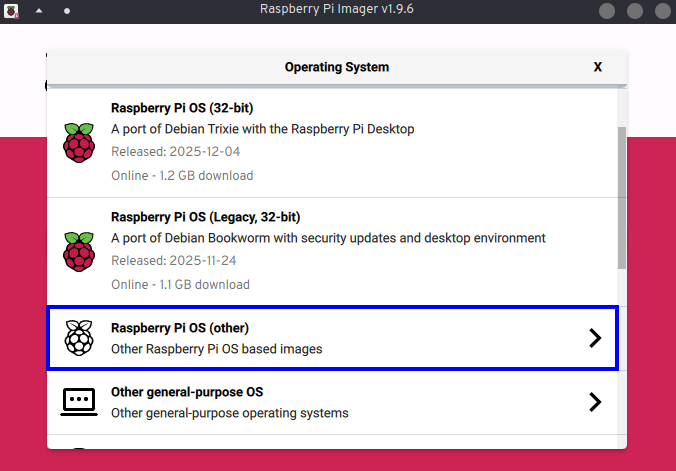
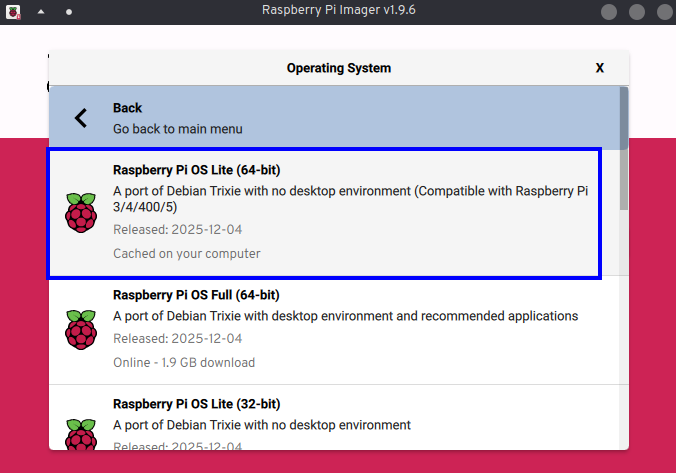
<p>I decided to go with a minimal install of debian 13. In raspberry Pi imager it’s in the “Raspberry Pi OS (other)” category.</p>

<p><img src="/assets/img/2025-12-27-installing-kodi-on-a-raspberry-pi-5/1.png" alt="1" /></p>

<p><img src="/assets/img/2025-12-27-installing-kodi-on-a-raspberry-pi-5/2.png" alt="2" /></p>

<p>Unfortunately with the Pi 5, the configuration from the imager letting you configure a user and the SSH when flashing the micro SD card seems to be broken so I configured it manually after flashing the Pi 5 when booting it for the first time. It asks for the user creation and password and then I just enabled SSH with:</p>
<div class="language-bash highlighter-rouge"><div class="highlight"><pre class="highlight"><code>systemctl <span class="nb">enable</span> <span class="nt">--now</span> ssh
</code></pre></div></div>
<p>(the service is ssh and not sshd on the Pi, it’s not a typo)</p>

<h2 id="2-installing-the-required-packages">2. installing the required packages</h2>

<p>First we need to install kodi and some packages to have sound and a minimal GUI support.</p>

<div class="language-bash highlighter-rouge"><div class="highlight"><pre class="highlight"><code><span class="nb">sudo </span>apt <span class="nb">install </span>kodi weston mesa-utils mesa-vulkan-drivers pipewire wireplumber pulseaudio-utils
</code></pre></div></div>

<h2 id="3-running-kodi">3. running Kodi</h2>

<h3 id="31-i-first-created-a-dedicated-user-and-added-it-to-the-required-groups-to-run-kodi-as-a-systemd-service">3.1) I first created a dedicated user and added it to the required groups to run Kodi as a systemd service:</h3>
<div class="language-bash highlighter-rouge"><div class="highlight"><pre class="highlight"><code><span class="nb">sudo </span>useradd <span class="nt">-m</span> kodi
<span class="nb">sudo </span>usermod <span class="nt">-aG</span> video,audio,input,render kodi
</code></pre></div></div>

<h3 id="32-then-i-enabled-autologin-for-kodi-on-tty1">3.2) Then I enabled autologin for kodi on TTY1</h3>
<div class="language-bash highlighter-rouge"><div class="highlight"><pre class="highlight"><code><span class="nb">sudo mkdir</span> <span class="nt">-p</span> /etc/systemd/system/getty@tty1.service.d
</code></pre></div></div>
<p>and in this folder I created this file:</p>
<div class="language-ini highlighter-rouge"><div class="highlight"><pre class="highlight"><code><span class="c">#/etc/systemd/system/getty@tty1.service.d/autologin.conf
</span><span class="nn">[Service]</span><span class="w">
</span><span class="py">ExecStart</span><span class="p">=</span>
<span class="py">ExecStart</span><span class="p">=</span><span class="s">-/sbin/agetty --autologin kodi --noclear %I $TERM</span>
</code></pre></div></div>

<h3 id="33-then-i-enabled-lingering-for-kodi-which-is-needed-to-start-user-systemd-services-even-without-a-shell-session">3.3) Then I enabled lingering for Kodi (which is needed to start user systemd services even without a shell session)</h3>
<div class="language-bash highlighter-rouge"><div class="highlight"><pre class="highlight"><code><span class="nb">sudo </span>loginctl enable-linger kodi
</code></pre></div></div>

<h3 id="34-finally-i-created-and-enabled-the-service-to-start-kodi-on-boot">3.4) Finally I created and enabled the service to start Kodi on boot:</h3>
<p>First creating the folder:</p>
<div class="language-bash highlighter-rouge"><div class="highlight"><pre class="highlight"><code><span class="nb">sudo mkdir</span> <span class="nt">-p</span> /home/kodi/.config/systemd/user
</code></pre></div></div>
<p>And then a service unit file:</p>
<div class="language-ini highlighter-rouge"><div class="highlight"><pre class="highlight"><code><span class="c">#/home/kodi/.config/systemd/user/kodi.service
</span><span class="nn">[Unit]</span><span class="w">
</span><span class="py">Description</span><span class="p">=</span><span class="s">Kodi Media Center (DRM/GBM)</span>
<span class="py">After</span><span class="p">=</span><span class="s">systemd-user-sessions.service</span>
<span class="py">Wants</span><span class="p">=</span><span class="s">systemd-user-sessions.service</span>
<span class="w">
</span><span class="nn">[Service]</span><span class="w">
</span><span class="py">ExecStart</span><span class="p">=</span><span class="s">/usr/bin/kodi </span><span class="se">\
</span><span class="w">  </span><span class="s">--standalone </span><span class="se">\
</span><span class="w">  </span><span class="s">--drm </span><span class="se">\
</span><span class="w">  </span><span class="s">--tty=/dev/tty1</span>
<span class="w">
</span><span class="py">Restart</span><span class="p">=</span><span class="s">on-failure</span>
<span class="py">RestartSec</span><span class="p">=</span><span class="s">3</span>
<span class="w">
</span><span class="nn">[Install]</span><span class="w">
</span><span class="py">WantedBy</span><span class="p">=</span><span class="s">default.target</span>
</code></pre></div></div>

<p>After this making sure the ownership is correct:</p>
<div class="language-bash highlighter-rouge"><div class="highlight"><pre class="highlight"><code><span class="nb">sudo chown</span> <span class="nt">-R</span> kodi:kodi /home/kodi
</code></pre></div></div>

<p>And then to enable the service:</p>
<div class="language-bash highlighter-rouge"><div class="highlight"><pre class="highlight"><code><span class="nb">sudo </span>systemctl <span class="nt">--user</span> <span class="nt">--machine</span><span class="o">=</span>kodi@.host daemon-reload
<span class="nb">sudo </span>systemctl <span class="nt">--user</span> <span class="nt">--machine</span><span class="o">=</span>kodi@.host <span class="nb">enable </span>kodi
</code></pre></div></div>

<p>And Finally:</p>
<div class="language-bash highlighter-rouge"><div class="highlight"><pre class="highlight"><code><span class="nb">sudo </span>reboot
</code></pre></div></div>

<h2 id="4-checking-logs">4. checking logs</h2>

<p>To check Kodi related logs, we can use the following command:</p>
<div class="language-bash highlighter-rouge"><div class="highlight"><pre class="highlight"><code><span class="nb">sudo </span>journalctl <span class="nv">_UID</span><span class="o">=</span><span class="si">$(</span><span class="nb">id</span> <span class="nt">-u</span> kodi<span class="si">)</span>
</code></pre></div></div>
<p>It’ll show all the journalctl logs from the kodi user.</p>]]></content><author><name>Sam Hadow</name></author><category term="sysadmin" /><summary type="html"><![CDATA[I recently got a raspberry Pi 5 with 8GB of RAM and wanted to install Kodi on it. OSMC isn’t available for the Pi 5, and I didn’t want to use LibreELEC to still have a debian base and be able to run other scripts and services from the Pi. In this blog post I’ll show you how I did this installation.]]></summary></entry><entry><title type="html">How To Install Jellyfin With Podman</title><link href="https://hadow.fr/blog/how-to-install-jellyfin-with-podman.html" rel="alternate" type="text/html" title="How To Install Jellyfin With Podman" /><published>2025-12-26T00:00:00+01:00</published><updated>2025-12-26T00:00:00+01:00</updated><id>https://hadow.fr/blog/how-to-install-jellyfin-with-podman</id><content type="html" xml:base="https://hadow.fr/blog/how-to-install-jellyfin-with-podman.html"><![CDATA[<p>In this blog post I’ll show you how to run jellyfin with podman and how to use hardware acceleration with a NVIDIA GPU and without disabling SELinux isolation for the container.</p>

<h1 id="steps">Steps</h1>

<h2 id="1-switch-the-required-booleans">1. switch the required booleans</h2>

<p>For hardware acceleration we need to let containers access devices in /dev/dri. DRI means Direct Rendering Infrastructure, the devices there are all the GPUs.<br />
By default containers are not allowed access to these devices, to allow it we need to change a boolean:</p>
<div class="language-bash highlighter-rouge"><div class="highlight"><pre class="highlight"><code><span class="nb">sudo </span>setsebool <span class="nt">-P</span> container_use_dri_devices 1
</code></pre></div></div>

<h2 id="2-container-creation">2. container creation</h2>

<p>I created a pod for the logic and then the jellyfin container inside it, with the systemd services it looks like this:</p>

<h4 id="pod">pod</h4>

<div class="language-ini highlighter-rouge"><div class="highlight"><pre class="highlight"><code><span class="c"># pod-jellyfin.service
</span><span class="w">
</span><span class="nn">[Unit]</span><span class="w">
</span><span class="py">Description</span><span class="p">=</span><span class="s">Podman pod-jellyfin.service</span>
<span class="py">Documentation</span><span class="p">=</span><span class="s">man:podman-generate-systemd(1)</span>
<span class="py">Wants</span><span class="p">=</span><span class="s">network-online.target</span>
<span class="py">After</span><span class="p">=</span><span class="s">network-online.target</span>
<span class="py">RequiresMountsFor</span><span class="p">=</span><span class="s">/run/user/1000/containers</span>
<span class="py">Wants</span><span class="p">=</span><span class="s">container-jellyfin-app.service</span>
<span class="py">Before</span><span class="p">=</span><span class="s">container-jellyfin-app.service</span>
<span class="w">
</span><span class="nn">[Service]</span><span class="w">
</span><span class="py">Environment</span><span class="p">=</span><span class="s">PODMAN_SYSTEMD_UNIT=%n</span>
<span class="py">Restart</span><span class="p">=</span><span class="s">on-failure</span>
<span class="py">TimeoutStopSec</span><span class="p">=</span><span class="s">70</span>
<span class="py">ExecStartPre</span><span class="p">=</span><span class="s">/usr/bin/podman pod create </span><span class="se">\
</span><span class="w">        </span><span class="s">--infra-conmon-pidfile %t/pod-jellyfin.pid </span><span class="se">\
</span><span class="w">        </span><span class="s">--pod-id-file %t/pod-jellyfin.pod-id </span><span class="se">\
</span><span class="w">        </span><span class="s">--exit-policy=stop </span><span class="se">\
</span><span class="w">        </span><span class="s">--name jellyfin </span><span class="se">\
</span><span class="w">        </span><span class="s">-p 8096:8096/tcp </span><span class="se">\
</span><span class="w">        </span><span class="s">--replace</span>
<span class="py">ExecStart</span><span class="p">=</span><span class="s">/usr/bin/podman pod start </span><span class="se">\
</span><span class="w">        </span><span class="s">--pod-id-file %t/pod-jellyfin.pod-id</span>
<span class="py">ExecStop</span><span class="p">=</span><span class="s">/usr/bin/podman pod stop </span><span class="se">\
</span><span class="w">        </span><span class="s">--ignore </span><span class="se">\
</span><span class="w">        </span><span class="s">--pod-id-file %t/pod-jellyfin.pod-id  </span><span class="se">\
</span><span class="w">        </span><span class="s">-t 10</span>
<span class="py">ExecStopPost</span><span class="p">=</span><span class="s">/usr/bin/podman pod rm </span><span class="se">\
</span><span class="w">        </span><span class="s">--ignore </span><span class="se">\
</span><span class="w">        </span><span class="s">-f </span><span class="se">\
</span><span class="w">        </span><span class="s">--pod-id-file %t/pod-jellyfin.pod-id</span>
<span class="py">PIDFile</span><span class="p">=</span><span class="s">%t/pod-jellyfin.pid</span>
<span class="py">Type</span><span class="p">=</span><span class="s">forking</span>
<span class="w">
</span><span class="nn">[Install]</span><span class="w">
</span><span class="py">WantedBy</span><span class="p">=</span><span class="s">default.target</span>
</code></pre></div></div>

<p>The port <code class="language-plaintext highlighter-rouge">8096</code> inside the container is used for the web interface (http).</p>

<h4 id="container">container</h4>

<div class="language-ini highlighter-rouge"><div class="highlight"><pre class="highlight"><code><span class="c"># container-jellyfin-app.service
</span><span class="w">
</span><span class="nn">[Unit]</span><span class="w">
</span><span class="py">Description</span><span class="p">=</span><span class="s">Podman container-jellyfin-app.service</span>
<span class="py">Documentation</span><span class="p">=</span><span class="s">man:podman-generate-systemd(1)</span>
<span class="py">Wants</span><span class="p">=</span><span class="s">network-online.target</span>
<span class="py">After</span><span class="p">=</span><span class="s">network-online.target</span>
<span class="py">RequiresMountsFor</span><span class="p">=</span><span class="s">%t/containers</span>
<span class="py">BindsTo</span><span class="p">=</span><span class="s">pod-jellyfin.service</span>
<span class="py">After</span><span class="p">=</span><span class="s">pod-jellyfin.service</span>
<span class="w">
</span><span class="nn">[Service]</span><span class="w">
</span><span class="py">Environment</span><span class="p">=</span><span class="s">PODMAN_SYSTEMD_UNIT=%n</span>
<span class="py">Restart</span><span class="p">=</span><span class="s">on-failure</span>
<span class="py">TimeoutStopSec</span><span class="p">=</span><span class="s">70</span>
<span class="py">ExecStart</span><span class="p">=</span><span class="s">/usr/bin/podman run </span><span class="se">\
</span><span class="w">        </span><span class="s">--cidfile=%t/%n.ctr-id </span><span class="se">\
</span><span class="w">        </span><span class="s">--cgroups=no-conmon </span><span class="se">\
</span><span class="w">        </span><span class="s">--rm </span><span class="se">\
</span><span class="w">        </span><span class="s">--pod-id-file %t/pod-jellyfin.pod-id </span><span class="se">\
</span><span class="w">        </span><span class="s">--sdnotify=conmon </span><span class="se">\
</span><span class="w">        </span><span class="s">--replace </span><span class="se">\
</span><span class="w">        </span><span class="s">-d </span><span class="se">\
</span><span class="w">        </span><span class="s">--name=jellyfin-app </span><span class="se">\
</span><span class="w">        </span><span class="s">--device nvidia.com/gpu=all </span><span class="se">\
</span><span class="w">        </span><span class="s">-v /home/data/podman/jellyfin/cache:/cache:Z </span><span class="se">\
</span><span class="w">        </span><span class="s">-v /home/data/podman/jellyfin/config:/config:Z </span><span class="se">\
</span><span class="w">        </span><span class="s">-v /home/data/movies:/media/movies:ro,z </span><span class="se">\
</span><span class="w">        </span><span class="s">-v /home/data/music:/media/music:ro,z </span><span class="se">\
</span><span class="w">        </span><span class="s">--label io.containers.autoupdate=registry docker.io/jellyfin/jellyfin:latest</span>
<span class="py">ExecStop</span><span class="p">=</span><span class="s">/usr/bin/podman stop </span><span class="se">\
</span><span class="w">        </span><span class="s">--ignore -t 10 </span><span class="se">\
</span><span class="w">        </span><span class="s">--cidfile=%t/%n.ctr-id</span>
<span class="py">ExecStopPost</span><span class="p">=</span><span class="s">/usr/bin/podman rm </span><span class="se">\
</span><span class="w">        </span><span class="s">-f </span><span class="se">\
</span><span class="w">        </span><span class="s">--ignore -t 10 </span><span class="se">\
</span><span class="w">        </span><span class="s">--cidfile=%t/%n.ctr-id</span>
<span class="py">Type</span><span class="p">=</span><span class="s">notify</span>
<span class="py">NotifyAccess</span><span class="p">=</span><span class="s">all</span>
<span class="w">
</span><span class="nn">[Install]</span><span class="w">
</span><span class="py">WantedBy</span><span class="p">=</span><span class="s">default.target</span>
</code></pre></div></div>

<p>Of course you’ll want to adapt these volumes with your own media directories:</p>
<div class="language-ini highlighter-rouge"><div class="highlight"><pre class="highlight"><code><span class="w">        </span><span class="na">-v</span><span class="w"> </span><span class="na">/home/data/movies/:/media/movies:ro,z</span><span class="w"> </span><span class="se">\
</span><span class="w">        </span><span class="na">-v</span><span class="w"> </span><span class="na">/home/data/music:/media/music:ro,z</span><span class="w"> </span><span class="se">\
</span></code></pre></div></div>

<p>Then enable and start the container:</p>
<div class="language-bash highlighter-rouge"><div class="highlight"><pre class="highlight"><code>systemctl <span class="nt">--user</span> daemon-reload
systemctl <span class="nt">--user</span> <span class="nb">enable</span> <span class="nt">--now</span> pod-jellyfin.service 
</code></pre></div></div>

<h3 id="note">note:</h3>
<p>for hardware acceleration I used <code class="language-plaintext highlighter-rouge">--device nvidia.com/gpu=all</code> as I have a NVIDIA GPU<br />
To check that it’s working you can run:</p>
<div class="language-bash highlighter-rouge"><div class="highlight"><pre class="highlight"><code>podman <span class="nb">exec</span> <span class="nt">-it</span> jellyfin-app nvidia-smi
</code></pre></div></div>
<p>I should output something like this:</p>
<div class="language-bash highlighter-rouge"><div class="highlight"><pre class="highlight"><code>Fri Dec 26 13:48:07 2025       
+-----------------------------------------------------------------------------------------+
| NVIDIA-SMI 580.95.05              Driver Version: 580.95.05      CUDA Version: 13.0     |
+-----------------------------------------+------------------------+----------------------+
| GPU  Name                 Persistence-M | Bus-Id          Disp.A | Volatile Uncorr. ECC |
| Fan  Temp   Perf          Pwr:Usage/Cap |           Memory-Usage | GPU-Util  Compute M. |
|                                         |                        |               MIG M. |
|<span class="o">=========================================</span>+<span class="o">========================</span>+<span class="o">======================</span>|
|   0  NVIDIA GeForce GTX 1050        Off |   00000000:01:00.0  On |                  N/A |
| 45%   28C    P8            N/A  /   75W |      11MiB /   2048MiB |      0%      Default |
|                                         |                        |                  N/A |
+-----------------------------------------+------------------------+----------------------+

+-----------------------------------------------------------------------------------------+
| Processes:                                                                              |
|  GPU   GI   CI              PID   Type   Process name                        GPU Memory |
|        ID   ID                                                               Usage      |
|<span class="o">=========================================================================================</span>|
|  No running processes found                                                             |
+-----------------------------------------------------------------------------------------+
</code></pre></div></div>

<p>If instead you get:</p>
<div class="language-plaintext highlighter-rouge"><div class="highlight"><pre class="highlight"><code>Failed to initialize NVML: Insufficient Permissions
</code></pre></div></div>
<p>You’ll need to install the container toolkit and generate a CDI specification file:</p>
<div class="language-bash highlighter-rouge"><div class="highlight"><pre class="highlight"><code><span class="nb">sudo </span>dnf <span class="nb">install </span>cuda-toolkit nvidia-container-toolkit-base
<span class="nb">sudo </span>nvidia-ctk cdi generate <span class="nt">--output</span><span class="o">=</span>/etc/cdi/nvidia.yaml
</code></pre></div></div>

<p>If this still doesn’t work you might need to also turn another boolean on:</p>
<div class="language-bash highlighter-rouge"><div class="highlight"><pre class="highlight"><code><span class="nb">sudo </span>setsebool <span class="nt">-P</span> container_use_xserver_devices 1
</code></pre></div></div>

<h3 id="note-2">note 2:</h3>
<p>Jellyfin documentation recommends using <code class="language-plaintext highlighter-rouge">--device /dev/dri/:/dev/dri/</code> in their podman example but this doesn’t seem to work, at least not for NVIDIA GPUs. and the method described in the hardware acceleration part of the <a href="https://jellyfin.org/docs/general/post-install/transcoding/hardware-acceleration/">wiki</a> is also different.</p>

<h2 id="3-enabling-hardware-acceleration-in-jellyfin">3. enabling hardware acceleration in jellyfin</h2>
<p>In jellyfin web interface after setting up the server, you’ll want to go to your dashboard (click on the hamburger menu in the top left and then dashboard), then playback, then transcoding and from there enable hardware acceleration, with a NVIDIA GPU you should choose <code class="language-plaintext highlighter-rouge">Nvidia NVENC</code>.</p>

<p><img src="/assets/img/2025-12-26-how-to-install-jellyfin-with-podman/1.png" alt="1" /></p>

<p><img src="/assets/img/2025-12-26-how-to-install-jellyfin-with-podman/2.png" alt="2" /></p>]]></content><author><name>Sam Hadow</name></author><category term="podman" /><category term="sysadmin" /><summary type="html"><![CDATA[In this blog post I’ll show you how to run jellyfin with podman and how to use hardware acceleration with a NVIDIA GPU and without disabling SELinux isolation for the container.]]></summary></entry><entry><title type="html">Qbittorrent Through A Vpn With Podman</title><link href="https://hadow.fr/blog/qbittorrent-through-a-vpn-with-podman.html" rel="alternate" type="text/html" title="Qbittorrent Through A Vpn With Podman" /><published>2025-12-22T00:00:00+01:00</published><updated>2025-12-22T00:00:00+01:00</updated><id>https://hadow.fr/blog/qbittorrent-through-a-vpn-with-podman</id><content type="html" xml:base="https://hadow.fr/blog/qbittorrent-through-a-vpn-with-podman.html"><![CDATA[<p>In this blog post I’ll show you how to run qbittorrent in a podman (in rootless) container and route its traffic through a VPN connection, in this case ProtonVPN.</p>

<h3 id="note-does-the-vpn-provider-matter">note: does the VPN provider matter?</h3>
<p>The VPN provider, if we don’t take into account privacy, doesn’t matter much as long as port forwarding is supported. Without port forwarding downloading torrents might still be possible but don’t expect a good seeding/leeching ratio.</p>

<p>For BitTorrent, the protocol behind, to work, at least one peer has to be an active node (have a publicly open port) and the goal of port forwarding is to have this publicly open port. With port forwarding enabled you increase the number of peers you can communicate with. And since more peers will be able to initiate a connection with you (passive nodes can always initiate a connection), you’ll have a better seeding/leeching ratio.</p>

<p>On less active or older torrents, port forwarding matters even more as if you end up in a situation where one peer has all the files, another peer wants to download them, but both have their ports closed, they won’t be able to establish a connection between each-other and the second peer won’t be able to download the torrent.</p>

<p><em>Even with closed ports, peers are still able to discover each other with the trackers, DHT (Distributed Hash Table) or PEX (Peer Exchange). Only the connection establishement part is affected.</em></p>

<h3 id="note-why-is-a-vpn-prefered-when-torrenting">note: Why is a VPN prefered when torrenting?</h3>
<p>A VPN is prefered when torrenting mainly for privacy and risks reductions.<br />
BitTorrent is not anonymous by design, every peer in the swarm can see your public IP address. By the way it’s how copyright monitoring companies are able to identify seeders and send copyright infrigement letters.</p>

<p>A VPN hides your public IP by exposing only the VPN endpoint. It helps not getting identified by copyright monitoring companies, and also against direct attack to your home connection from malicious peers. Without a VPN your IP can be logged accross long time periods and multiple torrents which allows profiling and targeted harassment.</p>

<p>It also encapsulates and encrypts traffic further so BitTorrent usage isn’t visible. Obfuscating your traffic might be useful against throtling as some ISPs detects BitTorrent via DPI (deep packet inspection) to throttle it or even throttle any kind of P2P traffic.</p>

<p>But keep in mind that a VPN doesn’t guarantee anonimity, the VPN provider can still see (and potentially log) your real IP address as well as the packets going through it.</p>

<h4 id="disclaimer">Disclaimer:</h4>
<p>hiding your IP address from copyright monitoring companies obviously doesn’t make piracy legal, it just drastically reduces the risks of you getting identified and caught.</p>

<h4 id="disclaimer-2">Disclaimer 2:</h4>
<p>A VPN doesn’t protect you against malicious torrent payloads (a trojan disguised as media for example) and attacks over the existing torrent connection (exploit vulnerabilities in the client, sending malformed data and so on…)</p>

<h1 id="steps">Steps</h1>

<h2 id="creating-the-containers">Creating the containers</h2>

<h3 id="1-pod-creation">1. Pod creation</h3>

<p>First I created a pod, without an infrastructure <code class="language-plaintext highlighter-rouge">--infra=false</code> because we’ll use gluetun network and not the host network (which wouldn’t go through the VPN connection). A pod is not required, you could just create the qbittorrent and the gluetun container. But I prefered to create one to logically group the containers and also see them with the command <code class="language-plaintext highlighter-rouge">podman pod ls</code>.</p>

<p>The systemd unit file will look like this:</p>
<div class="language-ini highlighter-rouge"><div class="highlight"><pre class="highlight"><code><span class="c"># pod-qbittorrent.service
</span><span class="w">
</span><span class="nn">[Unit]</span><span class="w">
</span><span class="py">Description</span><span class="p">=</span><span class="s">Podman pod-qbittorrent.service</span>
<span class="py">Wants</span><span class="p">=</span><span class="s">network-online.target</span>
<span class="py">After</span><span class="p">=</span><span class="s">network-online.target</span>
<span class="py">RequiresMountsFor</span><span class="p">=</span><span class="s">/run/user/1000/containers</span>
<span class="py">Wants</span><span class="p">=</span><span class="s">container-torrent-qbit.service container-torrent-gluetun.service</span>
<span class="w">
</span><span class="nn">[Service]</span><span class="w">
</span><span class="py">Type</span><span class="p">=</span><span class="s">oneshot</span>
<span class="py">RemainAfterExit</span><span class="p">=</span><span class="s">yes</span>
<span class="py">Environment</span><span class="p">=</span><span class="s">PODMAN_SYSTEMD_UNIT=%n</span>
<span class="py">TimeoutStartSec</span><span class="p">=</span><span class="s">30</span>
<span class="py">TimeoutStopSec</span><span class="p">=</span><span class="s">30</span>
<span class="w">
</span><span class="py">ExecStart</span><span class="p">=</span><span class="s">/usr/bin/podman pod create </span><span class="se">\
</span><span class="w">	</span><span class="s">--pod-id-file %t/pod-qbittorrent.pod-id </span><span class="se">\
</span><span class="w">	</span><span class="s">--exit-policy=stop </span><span class="se">\
</span><span class="w">	</span><span class="s">--name qbittorrent </span><span class="se">\
</span><span class="w">	</span><span class="s">--infra=false </span><span class="se">\
</span><span class="w">	</span><span class="s">--replace</span>
<span class="w">
</span><span class="py">ExecStop</span><span class="p">=</span><span class="s">/usr/bin/podman pod rm -f --pod-id-file %t/pod-qbittorrent.pod-id</span>
<span class="w">
</span><span class="nn">[Install]</span><span class="w">
</span><span class="py">WantedBy</span><span class="p">=</span><span class="s">multi-user.target</span>
</code></pre></div></div>

<h2 id="2-gluetun-container">2. Gluetun container</h2>

<p>We will use <a href="https://github.com/qdm12/gluetun">gluetun</a> for the VPN connection.</p>

<p>First you need to create the secrets for <code class="language-plaintext highlighter-rouge">WIREGUARD_ENDPOINT_IP</code>, <code class="language-plaintext highlighter-rouge">WIREGUARD_PUBLIC_KEY</code>, <code class="language-plaintext highlighter-rouge">WIREGUARD_PRIVATE_KEY</code>. Creating these secrets is not necessary but it avoids exposing sensitive information in your configuration files.</p>

<p>With ProtonVPN when downloading a wireguard configuration it’ll look like this:</p>
<div class="language-ini highlighter-rouge"><div class="highlight"><pre class="highlight"><code><span class="nn">[Interface]</span><span class="w">
</span><span class="py">PrivateKey</span><span class="w"> </span><span class="p">=</span><span class="w"> </span><span class="s">&lt;private_key&gt;</span>
<span class="py">Address</span><span class="w"> </span><span class="p">=</span><span class="w"> </span><span class="s">10.2.0.2/32</span>
<span class="py">DNS</span><span class="w"> </span><span class="p">=</span><span class="w"> </span><span class="s">10.2.0.1</span>
<span class="w">
</span><span class="nn">[Peer]</span><span class="w">
</span><span class="c"># BE#67
</span><span class="py">PublicKey</span><span class="w"> </span><span class="p">=</span><span class="w"> </span><span class="s">&lt;peer_public_key&gt;</span>
<span class="py">AllowedIPs</span><span class="w"> </span><span class="p">=</span><span class="w"> </span><span class="s">0.0.0.0/0, ::/0</span>
<span class="py">Endpoint</span><span class="w"> </span><span class="p">=</span><span class="w"> </span><span class="s">&lt;endpoint_IP&gt;:51820</span>
</code></pre></div></div>

<p>To create the secrets you’ll need to first derive the public key from the private key:</p>
<div class="language-bash highlighter-rouge"><div class="highlight"><pre class="highlight"><code><span class="nb">echo</span> <span class="nt">-n</span> <span class="s2">"private_key"</span> <span class="o">&gt;</span> privkey
wg pubkey &lt; privkey
</code></pre></div></div>

<p>Then you can create the secrets</p>
<div class="language-bash highlighter-rouge"><div class="highlight"><pre class="highlight"><code><span class="nb">echo</span> <span class="nt">-n</span> <span class="s2">"private_key"</span> <span class="o">&gt;</span> /tmp/secret
podman secret create wg_sk /tmp/secret
<span class="nb">echo</span> <span class="nt">-n</span> <span class="s2">"public_key"</span> <span class="o">&gt;</span> /tmp/secret
podman secret create wg_pk /tmp/secret
<span class="nb">echo</span> <span class="nt">-n</span> <span class="s2">"endpoint_IP"</span> <span class="o">&gt;</span> /tmp/secret
podman secret create wg_ip /tmp/secret
</code></pre></div></div>

<p>Then the container unit file will look like this:<br />
<em>Of course you’ll need to adapt the path for the volume</em></p>
<div class="language-ini highlighter-rouge"><div class="highlight"><pre class="highlight"><code><span class="c"># container-torrent-gluetun.service
</span><span class="w">
</span><span class="nn">[Unit]</span><span class="w">
</span><span class="py">Description</span><span class="p">=</span><span class="s">Podman container-torrent-gluetun.service</span>
<span class="py">Documentation</span><span class="p">=</span><span class="s">man:podman-generate-systemd(1)</span>
<span class="py">Wants</span><span class="p">=</span><span class="s">network-online.target</span>
<span class="py">After</span><span class="p">=</span><span class="s">network-online.target</span>
<span class="py">RequiresMountsFor</span><span class="p">=</span><span class="s">%t/containers</span>
<span class="py">BindsTo</span><span class="p">=</span><span class="s">pod-qbittorrent.service</span>
<span class="py">After</span><span class="p">=</span><span class="s">pod-qbittorrent.service</span>
<span class="w">
</span><span class="nn">[Service]</span><span class="w">
</span><span class="py">Environment</span><span class="p">=</span><span class="s">PODMAN_SYSTEMD_UNIT=%n</span>
<span class="py">Restart</span><span class="p">=</span><span class="s">on-failure</span>
<span class="py">TimeoutStopSec</span><span class="p">=</span><span class="s">90</span>
<span class="py">ExecStart</span><span class="p">=</span><span class="s">/usr/bin/podman run </span><span class="se">\
</span><span class="w">	</span><span class="s">--cidfile=%t/%n.ctr-id </span><span class="se">\
</span><span class="w">	</span><span class="s">--cgroups=no-conmon </span><span class="se">\
</span><span class="w">	</span><span class="s">--rm </span><span class="se">\
</span><span class="w">	</span><span class="s">--pod-id-file %t/pod-qbittorrent.pod-id </span><span class="se">\
</span><span class="w">	</span><span class="s">--sdnotify=conmon </span><span class="se">\
</span><span class="w">	</span><span class="s">--replace </span><span class="se">\
</span><span class="w">	</span><span class="s">-d </span><span class="se">\
</span><span class="w">	</span><span class="s">--name=torrent-gluetun </span><span class="se">\
</span><span class="w">	</span><span class="s">-p 8080:8080 </span><span class="se">\
</span><span class="w">	</span><span class="s">--stop-timeout 60 </span><span class="se">\
</span><span class="w">	</span><span class="s">--tmpfs /tmp </span><span class="se">\
</span><span class="w">	</span><span class="s">--cap-add NET_ADMIN </span><span class="se">\
</span><span class="w">	</span><span class="s">--cap-add NET_RAW </span><span class="se">\
</span><span class="w">	</span><span class="s">--device /dev/net/tun:/dev/net/tun </span><span class="se">\
</span><span class="w">	</span><span class="s">-v /home/data/podman/gluetun:/gluetun:z </span><span class="se">\
</span><span class="w">	</span><span class="s">-e VPN_SERVICE_PROVIDER=custom </span><span class="se">\
</span><span class="w">	</span><span class="s">-e VPN_TYPE=wireguard </span><span class="se">\
</span><span class="w">	</span><span class="s">--secret wg_ip,type=env,target=WIREGUARD_ENDPOINT_IP </span><span class="se">\
</span><span class="w">	</span><span class="s">-e WIREGUARD_ENDPOINT_PORT=51820 </span><span class="se">\
</span><span class="w">	</span><span class="s">--secret wg_pk,type=env,target=WIREGUARD_PUBLIC_KEY </span><span class="se">\
</span><span class="w">	</span><span class="s">--secret wg_sk,type=env,target=WIREGUARD_PRIVATE_KEY </span><span class="se">\
</span><span class="w">	</span><span class="s">-e WIREGUARD_ADDRESSES=10.2.0.2/32 </span><span class="se">\
</span><span class="w">	</span><span class="s">-e VPN_PORT_FORWARDING_PROVIDER=protonvpn </span><span class="se">\
</span><span class="w">	</span><span class="s">-e VPN_PORT_FORWARDING=on </span><span class="se">\
</span><span class="w">	</span><span class="s">--label io.containers.autoupdate=registry </span><span class="se">\
</span><span class="w">	</span><span class="s">docker.io/qmcgaw/gluetun:latest</span>
<span class="py">ExecStop</span><span class="p">=</span><span class="s">/usr/bin/podman stop </span><span class="se">\
</span><span class="w">	</span><span class="s">--ignore -t 30 </span><span class="se">\
</span><span class="w">	</span><span class="s">--cidfile=%t/%n.ctr-id</span>
<span class="py">ExecStopPost</span><span class="p">=</span><span class="s">/usr/bin/podman rm </span><span class="se">\
</span><span class="w">	</span><span class="s">-f </span><span class="se">\
</span><span class="w">	</span><span class="s">--ignore </span><span class="se">\
</span><span class="w">	</span><span class="s">--cidfile=%t/%n.ctr-id</span>
<span class="py">Type</span><span class="p">=</span><span class="s">notify</span>
<span class="py">NotifyAccess</span><span class="p">=</span><span class="s">all</span>
<span class="w">
</span><span class="nn">[Install]</span><span class="w">
</span><span class="py">WantedBy</span><span class="p">=</span><span class="s">default.target</span>
</code></pre></div></div>

<p>Here I put “custom” in the <code class="language-plaintext highlighter-rouge">VPN_SERVICE_PROVIDER</code> environment variable instead of “protonvpn”, or whichever VPN provider you might be using, because port forwarding wouldn’t work otherwise. “protonvpn is then later specified in the<code class="language-plaintext highlighter-rouge">VPN_PORT_FORWARDING_PROVIDER</code> environment variable.<br />
You can have a look at the <a href="https://github.com/qdm12/gluetun-wiki">wiki</a> in the option section for port forwarding if you use another VPN provider.</p>

<p>When looking at the logs from gluetun container with the command:</p>
<div class="language-bash highlighter-rouge"><div class="highlight"><pre class="highlight"><code>podman logs torrent-gluetun
</code></pre></div></div>
<p>you should see a line like this:</p>
<div class="language-ini highlighter-rouge"><div class="highlight"><pre class="highlight"><code><span class="na">INFO</span><span class="w"> </span><span class="nn">[port forwarding]</span><span class="w"> </span><span class="na">port</span><span class="w"> </span><span class="na">forwarded</span><span class="w"> </span><span class="na">is</span><span class="w"> </span><span class="na">45497</span><span class="w">
</span></code></pre></div></div>
<p>It’s the port you’ll want to use in qbittorrent. However check it again when you restart the container as this port can sometimes change.</p>

<h2 id="3-qbittorrent-container">3. Qbittorrent container</h2>

<p>After the gluetun container, we can create the container for qbittorrent, we’ll make this container bind to gluetun container in order to use the network provided by it and correctly route the traffic through the VPN.<br />
<em>Don’t forget to adapt QBT_WEBUI_PORT to the one you prefer</em></p>
<div class="language-ini highlighter-rouge"><div class="highlight"><pre class="highlight"><code><span class="c"># container-torrent-qbit.service
</span><span class="w">
</span><span class="nn">[Unit]</span><span class="w">
</span><span class="py">Description</span><span class="p">=</span><span class="s">Podman container-torrent-qbit.service</span>
<span class="py">Wants</span><span class="p">=</span><span class="s">network-online.target container-torrent-gluetun.service</span>
<span class="py">After</span><span class="p">=</span><span class="s">network-online.target container-torrent-gluetun.service</span>
<span class="py">RequiresMountsFor</span><span class="p">=</span><span class="s">%t/containers</span>
<span class="py">BindsTo</span><span class="p">=</span><span class="s">pod-qbittorrent.service container-torrent-gluetun.service</span>
<span class="py">After</span><span class="p">=</span><span class="s">pod-qbittorrent.service</span>
<span class="w">
</span><span class="nn">[Service]</span><span class="w">
</span><span class="py">Environment</span><span class="p">=</span><span class="s">PODMAN_SYSTEMD_UNIT=%n</span>
<span class="py">Restart</span><span class="p">=</span><span class="s">on-failure</span>
<span class="py">TimeoutStopSec</span><span class="p">=</span><span class="s">1860</span>
<span class="py">ExecStart</span><span class="p">=</span><span class="s">/usr/bin/podman run </span><span class="se">\
</span><span class="w">	</span><span class="s">--cidfile=%t/%n.ctr-id </span><span class="se">\
</span><span class="w">	</span><span class="s">--cgroups=no-conmon </span><span class="se">\
</span><span class="w">	</span><span class="s">--sysctl net.ipv6.conf.all.disable_ipv6=1 </span><span class="se">\
</span><span class="w">	</span><span class="s">--rm </span><span class="se">\
</span><span class="w">	</span><span class="s">--pod-id-file %t/pod-qbittorrent.pod-id </span><span class="se">\
</span><span class="w">	</span><span class="s">--sdnotify=conmon </span><span class="se">\
</span><span class="w">	</span><span class="s">--replace </span><span class="se">\
</span><span class="w">	</span><span class="s">-d </span><span class="se">\
</span><span class="w">	</span><span class="s">--name=torrent-qbit </span><span class="se">\
</span><span class="w">	</span><span class="s">--network container:torrent-gluetun </span><span class="se">\
</span><span class="w">	</span><span class="s">--stop-timeout 1800 </span><span class="se">\
</span><span class="w">	</span><span class="s">--tmpfs /tmp </span><span class="se">\
</span><span class="w">	</span><span class="s">-e QBT_LEGAL_NOTICE=confirm </span><span class="se">\
</span><span class="w">	</span><span class="s">-e QBT_WEBUI_PORT=8080 </span><span class="se">\
</span><span class="w">	</span><span class="s">-v /home/data/podman/qbittorrent/config:/config:z </span><span class="se">\
</span><span class="w">	</span><span class="s">-v /home/data/podman/qbittorrent/data:/downloads:z </span><span class="se">\
</span><span class="w">	</span><span class="s">--label io.containers.autoupdate=registry docker.io/qbittorrentofficial/qbittorrent-nox:latest</span>
<span class="py">ExecStop</span><span class="p">=</span><span class="s">/usr/bin/podman stop </span><span class="se">\
</span><span class="w">	</span><span class="s">--ignore -t 1800 </span><span class="se">\
</span><span class="w">	</span><span class="s">--cidfile=%t/%n.ctr-id</span>
<span class="py">ExecStopPost</span><span class="p">=</span><span class="s">/usr/bin/podman rm </span><span class="se">\
</span><span class="w">	</span><span class="s">-f </span><span class="se">\
</span><span class="w">	</span><span class="s">--ignore -t 1800 </span><span class="se">\
</span><span class="w">	</span><span class="s">--cidfile=%t/%n.ctr-id</span>
<span class="py">Type</span><span class="p">=</span><span class="s">notify</span>
<span class="py">NotifyAccess</span><span class="p">=</span><span class="s">all</span>
<span class="w">
</span><span class="nn">[Install]</span><span class="w">
</span><span class="py">WantedBy</span><span class="p">=</span><span class="s">default.target</span>
</code></pre></div></div>

<h2 id="managing-the-containers">managing the containers</h2>

<p>All my unit files are in <code class="language-plaintext highlighter-rouge">~/.config/systemd/user</code></p>

<p>When you create new unit files, or change them, don’t forget to run</p>
<div class="language-bash highlighter-rouge"><div class="highlight"><pre class="highlight"><code>systemctl <span class="nt">--user</span> daemon-reload
</code></pre></div></div>

<p>Then you can start the pod like this:</p>
<div class="language-bash highlighter-rouge"><div class="highlight"><pre class="highlight"><code>systemctl <span class="nt">--user</span> start pod-qbittorrent.service
</code></pre></div></div>
<p><em>(or start it and enable it with</em> <code class="language-plaintext highlighter-rouge">enable --now</code> <em>instead of</em> <code class="language-plaintext highlighter-rouge">start</code><em>)</em></p>

<p>And to stop it:</p>
<div class="language-bash highlighter-rouge"><div class="highlight"><pre class="highlight"><code>systemctl <span class="nt">--user</span> stop pod-qbittorrent.service
</code></pre></div></div>

<p>In case qbittorrent doesn’t get an external IP because it started before the VPN connection was established you can restart it like this</p>
<div class="language-bash highlighter-rouge"><div class="highlight"><pre class="highlight"><code>systemctl <span class="nt">--user</span> restart container-torrent-qbit.service
</code></pre></div></div>

<h3 id="note">note:</h3>
<p>You might have noticed that I use the option <code class="language-plaintext highlighter-rouge">:z</code> on my containers, this is because I use SELinux. You can read my post about SELinux <a href="/blog/why-you-should-use-SELinux-and-how.html">here</a> for more details.</p>

<h3 id="note-2">note 2:</h3>
<p>You might also have noticed I use a label on my containers:</p>
<div class="language-ini highlighter-rouge"><div class="highlight"><pre class="highlight"><code><span class="na">--label</span><span class="w"> </span><span class="py">io.containers.autoupdate</span><span class="p">=</span><span class="s">registry</span>
</code></pre></div></div>
<p>This label is used to automatically pull the latest image and update the container whenever a new latest image is released. It is not necessary for this setup to work but is useful to have your containers automatically updated.</p>]]></content><author><name>Sam Hadow</name></author><category term="podman" /><category term="sysadmin" /><category term="torrent" /><summary type="html"><![CDATA[In this blog post I’ll show you how to run qbittorrent in a podman (in rootless) container and route its traffic through a VPN connection, in this case ProtonVPN.]]></summary></entry><entry><title type="html">Qemu Kvm Bridged Network</title><link href="https://hadow.fr/blog/qemu-kvm-bridged-network.html" rel="alternate" type="text/html" title="Qemu Kvm Bridged Network" /><published>2025-12-20T00:00:00+01:00</published><updated>2025-12-20T00:00:00+01:00</updated><id>https://hadow.fr/blog/qemu-kvm-bridged-network</id><content type="html" xml:base="https://hadow.fr/blog/qemu-kvm-bridged-network.html"><![CDATA[<p>On my computer I use archlinux with NetworkManager and QEMU/KVM with virt-manager for virtual machines. In this blog post I’ll show you the steps to set up a bridge for the virtual machine. With a bridge on the host instead of the virtual connection NATed to a device, each virtual machine will have its own IP address on the network the host is connected to.</p>

<h2 id="purpose">Purpose</h2>
<p>The advantage of having a bridge for the virtual machines is the router sees each virtual machine as a separate machine. Each virtual machine is visible on the LAN and has an independent IP address. It also has the advantage of not requiring any additional configuration on the host firewall, when using a NAT network attached to a device forward rules are required to make it work.<br />
For example for NATed connections I have the following additional rules in my nftables configuration:<br />
<em>note: I purposefully ommited the rest of the configuration and only left the rules for the NAT connection.</em></p>
<div class="language-bash highlighter-rouge"><div class="highlight"><pre class="highlight"><code>define qemu_bridge_if <span class="o">=</span> <span class="s2">"virbr0"</span>
table inet filter <span class="o">{</span>
        chain input <span class="o">{</span>
                <span class="c"># -------------------------------- qemu</span>
                iifname <span class="nv">$qemu_bridge_if</span> accept  comment <span class="s2">"accept from VM"</span>

        <span class="o">}</span>

        chain forward <span class="o">{</span>
                <span class="c"># -------------------------------- qemu</span>
                iifname <span class="nv">$qemu_bridge_if</span> accept  comment <span class="s2">"accept VM interface as input"</span>
                oifname <span class="nv">$qemu_bridge_if</span> accept comment <span class="s2">"accept VM interface as output"</span>
        <span class="o">}</span>
        chain output <span class="o">{</span>
        <span class="o">}</span>
<span class="o">}</span>

</code></pre></div></div>

<h2 id="steps">Steps</h2>

<h3 id="1-identify-physical-nic">1. Identify physical NIC:</h3>

<p>First we have to identify the NIC (Network Interface Card) used by the host to connect to the internet.</p>

<p>To do this we can use the command <code class="language-plaintext highlighter-rouge">ip a</code> and look for the line with the IP address we have on the LAN:</p>

<p>Example output:<br />
<em>note: I purposefully ommited the other interfaces and anonymized the output</em></p>
<div class="language-bash highlighter-rouge"><div class="highlight"><pre class="highlight"><code>3: enp4s0f0: &lt;BROADCAST,MULTICAST,UP,LOWER_UP&gt; mtu 1500 qdisc mq state UP group default qlen 1000
    <span class="nb">link</span>/ether aa:bb:cc:dd:ee:ff brd ff:ff:ff:ff:ff:ff
    altname enxAABBCCDDEEFF
    inet 10.0.0.42/24 brd 10.0.0.255 scope global dynamic noprefixroute enp4s0f0
       valid_lft 3600sec preferred_lft 3600sec
    inet6 fd00:dead:beef::1234/64 scope global noprefixroute
       valid_lft forever preferred_lft forever
    inet6 fe80::abcd:ef12:3456:789a/64 scope <span class="nb">link </span>noprefixroute
       valid_lft forever preferred_lft forever
</code></pre></div></div>
<p>The interesting information for us here is the interface name: <code class="language-plaintext highlighter-rouge">enp4s0f0</code></p>

<h3 id="2-create-the-bridge">2. Create the bridge</h3>

<p>Once we have identified the interface we can proceeed with the bridge creation.</p>

<p>First creating the bridge:
<em>note: here it’s named br0, but name it how you prefer</em></p>
<div class="language-bash highlighter-rouge"><div class="highlight"><pre class="highlight"><code><span class="nb">sudo </span>nmcli connection add <span class="nb">type </span>bridge ifname br0 con-name br0
</code></pre></div></div>
<p>Then attach the bridge to the interface:</p>
<div class="language-bash highlighter-rouge"><div class="highlight"><pre class="highlight"><code><span class="nb">sudo </span>nmcli connection add <span class="nb">type </span>ethernet ifname enp4s0f0 master br0 con-name br0-enp4s0f0
</code></pre></div></div>
<p>Then move the IP configuration to the bridge:</p>
<div class="language-bash highlighter-rouge"><div class="highlight"><pre class="highlight"><code><span class="nb">sudo </span>nmcli connection modify br0 ipv4.method auto ipv6.method auto
<span class="nb">sudo </span>nmcli connection modify br0-enp4s0f0 ipv4.method disabled ipv6.method ignore
</code></pre></div></div>

<p>With</p>
<div class="language-bash highlighter-rouge"><div class="highlight"><pre class="highlight"><code><span class="nv">$ </span>nmcli connection show
</code></pre></div></div>
<p>You should see something like:</p>
<div class="language-bash highlighter-rouge"><div class="highlight"><pre class="highlight"><code>NAME                UUID                                  TYPE       DEVICE   
Wired connection 1  a1b2c3d4-e5f6-4a7b-8c9d-0e1f2a3b4c5d  ethernet   enp4s0f0 
br0                 f0e9d8c7-b6a5-4987-9abc-1234567890a9  bridge     br0   
</code></pre></div></div>
<p>You can disable the old connection:</p>
<div class="language-bash highlighter-rouge"><div class="highlight"><pre class="highlight"><code><span class="nb">sudo </span>nmcli connection down <span class="s2">"Wired connection 1"</span>
</code></pre></div></div>
<p>And optionally delete it:</p>
<div class="language-bash highlighter-rouge"><div class="highlight"><pre class="highlight"><code><span class="nb">sudo </span>nmcli connection delete <span class="s2">"Wired connection 1"</span>
</code></pre></div></div>

<p>After that bring up the bridge:</p>
<div class="language-bash highlighter-rouge"><div class="highlight"><pre class="highlight"><code><span class="nb">sudo </span>nmcli connection up br0
</code></pre></div></div>

<p>Then with</p>
<div class="language-bash highlighter-rouge"><div class="highlight"><pre class="highlight"><code>ip a show br0 | <span class="nb">grep</span> <span class="s2">"inet "</span>
</code></pre></div></div>
<p>You should see something like:</p>
<div class="language-bash highlighter-rouge"><div class="highlight"><pre class="highlight"><code>    inet 10.0.0.125/24 brd 10.0.0.255 scope global dynamic noprefixroute br0
</code></pre></div></div>
<p>And <code class="language-plaintext highlighter-rouge">enp4s0f0</code> should no longer have an IP address.</p>

<h4 id="note">note:</h4>
<p>If you have an IP address reservation in your router using the MAC address from your NIC, you should now replace it with the MAC address from br0. The virtual machines will still appear as different machines and get their IP address with the DHCP.</p>

<h3 id="3-creating-virtual-machines">3. Creating virtual machines</h3>

<p>Then with virt-manager when creating virtual machines, skip the network configuration and don’t add a virtual network, instead in the virtual machine informations, add new hardware, go to network and select bridged device (here the device name will be <code class="language-plaintext highlighter-rouge">br0</code>).</p>

<p><img src="/assets/img/2025-12-20-qemu-kvm-bridged-network/1.png" alt="1" /></p>

<p><img src="/assets/img/2025-12-20-qemu-kvm-bridged-network/2.png" alt="2" /></p>]]></content><author><name>Sam Hadow</name></author><category term="virtualization" /><category term="networking" /><category term="sysadmin" /><summary type="html"><![CDATA[On my computer I use archlinux with NetworkManager and QEMU/KVM with virt-manager for virtual machines. In this blog post I’ll show you the steps to set up a bridge for the virtual machine. With a bridge on the host instead of the virtual connection NATed to a device, each virtual machine will have its own IP address on the network the host is connected to.]]></summary></entry></feed>